Form responses
Read customer questionnaire answers in full, check guest submissions and find a pet’s current details in Pet Card.
Updated 20 September 2026
Read a customer's questionnaire before their visit, or check the exact answers they sent afterwards. Open the responses for the form they completed, then select their row to read the full submission.
Open in app: Forms
Open the answers for a form
- Open Clients → Forms and find the questionnaire.
- Choose View Responses from its menu. The response count also opens the list when the form has submissions.
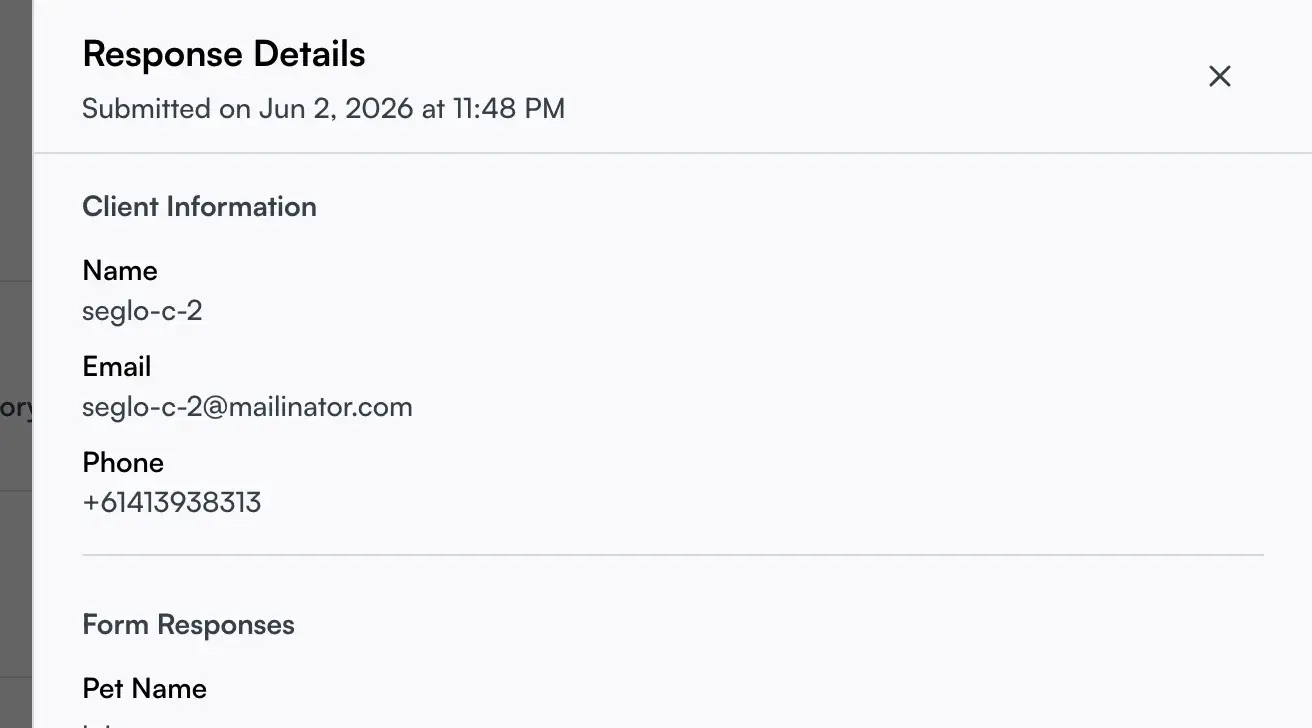
- Select a row to open Response Details.
A form with no submissions has no answers to display yet. Make sure you have opened the form the customer actually received, especially if you keep several questionnaires.
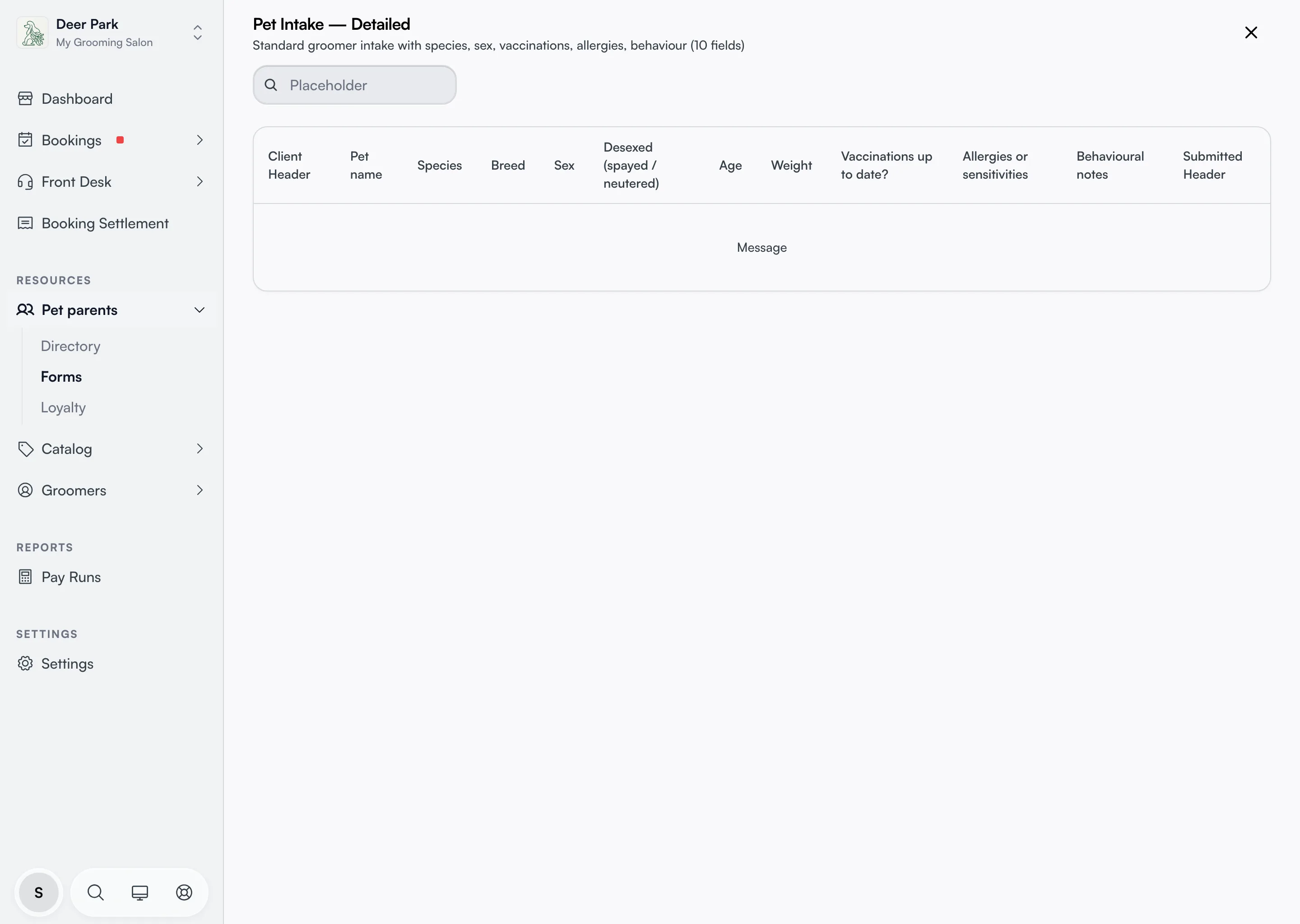
Read a long answer in full
The response table shows the customer, a column for each question and the submitted date. Long answers are shortened in the table. Select the row to open Response Details and read the complete text.
The panel shows Client Information and Form Responses. Multiple-choice answers appear together. Email or phone details appear when they are available on the submission.
Use the rows to open the response you need. The search box on this page does not currently find customer names or answer text reliably; if it hides the rows you need, clear it and open the response directly.
Check a response labelled Guest
A row shows Guest when it has no linked client record. You can still open its submitted answers. The Guest label alone does not tell you why there is no client linked, or prove that the customer has no account.
To look for a separate client record, use the Client directory. Avoid creating a duplicate just because the form response has no name beside it.
Find a pet's current details
Use Clients → Directory, open the pet parent and select their pet to read the Pet Card. That is where you check or correct the dog's current saved details.
A form response records answers submitted to that questionnaire. Reading it does not edit the pet. To change the questions your shop asks on every Pet Card, open Settings → Pet Card; customer questionnaires are managed separately in Forms.
Download responses as a spreadsheet
The business owner can download form answers through Settings → Data export. Include Clients, pets and forms, optionally set dates, then choose Create export. Download the CSV and JSON records when the archive is ready; see Data export for the full steps.
For one client, open their details and choose Export client data. This response screen itself has no Export CSV button; staff who need a copy should ask the business owner.
Stop using a form without losing its answers
Return to Clients → Forms and change the questionnaire to Draft when you no longer want to send it. A form with responses cannot be deleted from that list. Keep it so your team can return to the answers already collected.
Related
- Forms — create and send customer questionnaires.
- Client profiles — read and correct a pet's saved details.
- Client directory — find the pet parent and their pets.
Related