Names customers see
The client and pet names your team enters stay with your team. Customers see their own first name and the names they gave their pets.
Updated 24 October 2026
Name a client the way your team finds them fastest, such as "Peter (nervous with clippers)" or "Sarah – cash only", without worrying that it lands in their inbox. The names your team enters for a client or a pet stay with your team. Customers see only the names they gave themselves and their pets.
Open in app: Client directory
Name a client or pet for your team (web app)
- Open Clients → Directory and select the client, or add a new one.
- Type the name in Full Name. The line under it reads "Only your team sees this name. Clients see the first name on their own account."
- Save.
A pet works the same way. When you edit a pet, the line under its name reads "Only your team sees this name. Clients see the name they gave it." The same line appears when you add a client from Schedule, or save a sender as a client from Messages.
Check the name a customer uses (web app)
Open the client in Clients → Directory. If the client books with you online, a globe line under their name shows Online account · Peter. Peter is the first name on their own account, and the line under it says messages and online bookings use this name. Select Online account for a short explanation you can read with a new team member.
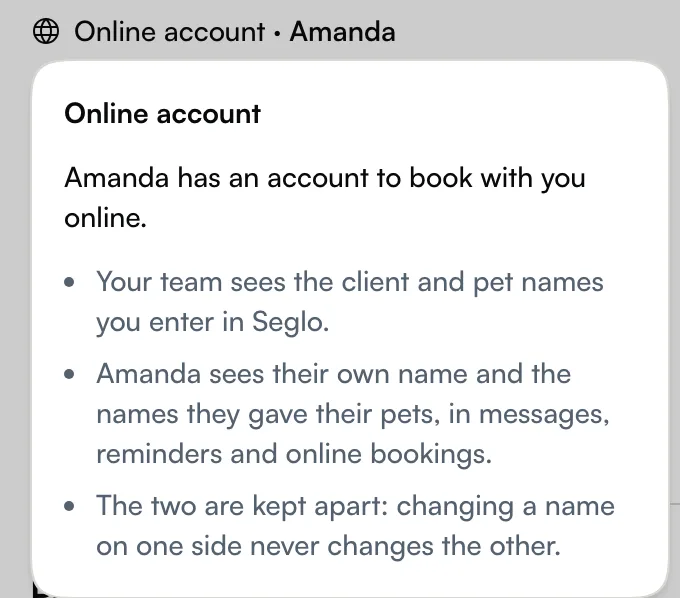
Each pet shows its own globe line:
- Online name · Mochi — the name the customer gave this pet. Their messages and booking pages use it.
- Not named online — the customer books online but has not named this pet.
- No globe line — the client has no online account.
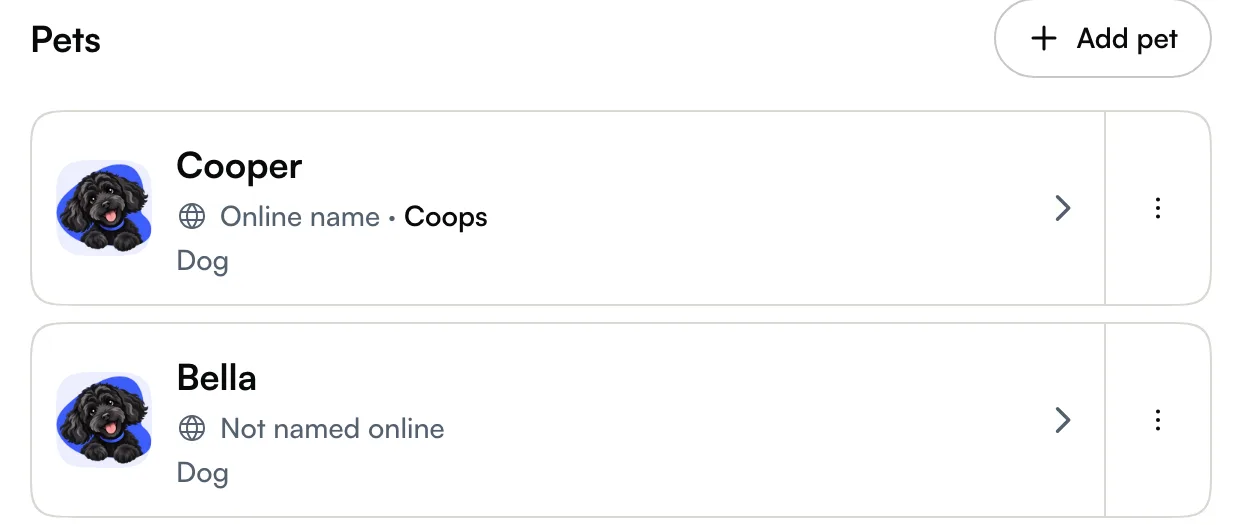
These lines appear on the client's profile, in their pet list and on each Pet Card.
Know what customers see in messages and online
Seglo's automatic emails, texts, reminders and app notifications to a customer use:
- the first name on the customer's own account, and
- the name the customer gave each pet.
This also applies to messages that use your own wording. When the customer signs in, My bookings and My pets show their own names too. Your calendar, staff notifications and client list keep the names your team entered.
A message you send from a conversation goes out exactly as it reads in the message box. That includes quick replies: they fill in the client and pet names your team entered, so read the names before you press send.
When the customer has no name online
Seglo never fills the gap with your team's name.
- No first name on their account: the profile shows Online account with no name, and messages leave the name out.
- A pet they have not named: messages say "your pet", or "your pets" for several. If only some are named, it reads like "Mochi and your other pet".
- No online account at all: messages leave the name out, and pets are "your pet".
On My pets, a pet the customer has not named shows as Your pet. Opening it offers Name your pet. The name they choose becomes the pet's Online name. It doesn't change your team's name.
When either side changes a name
The two names are kept apart. When you rename a client or pet, the customer still sees their own name. When the customer changes their first name on their account, or renames their pet, your record keeps the name your team entered. Messages use the customer's new name from then on.
Tips
- Write what helps your team. A name like "Bella – reactive, muzzle" never reaches the customer. For handling details your team needs on every visit, a pet's Standing note is still the better place; see Client profiles.
- Online account with no name? Messages to that client have no name in them until they add one to their account.
- Seglo appointment app and Seglo Phone app don't show the globe lines yet. What customers see is the same whichever app your team uses.
- Privacy: the Privacy Policy tells customers that a business they have booked with can see the first name on their account.
Related
- Client profiles — edit a pet's details, team notes and standing note.
- Client directory — find, add and edit clients.
- My bookings — what customers see when they sign in.
Related