Client profiles
Keep each pet’s details and grooming notes together. Open their Pet Card, read its team notes, and manage their profile from the client directory.
Updated 24 October 2026
Check a pet’s trim preferences and handling notes before you start the groom. Each pet has its own profile under the pet parent’s account, so dogs from the same household keep their own details.
Open in app: Client directory · Pet Card settings
Read a pet’s grooming notes (web app)
- Open Clients → Directory and select the pet parent.
- Select the pet to open their Pet Card.
- On the Overview tab, look under Care & grooming. Team notes holds the pet’s saved trim preferences and handling instructions.
- Open the Grooming record tab for their visit history.
This 10-second demo starts with Hugo’s Pet Card already open and shows where to find the team notes. Press play to watch.
For example, Hugo’s note asks for a soft teddy trim, natural ears and a fluffy tail, with gentle handling around his paws. These are fictional details used in the demo. Your pet’s record shows the notes your team has saved.
If Care & grooming says No care notes yet, nothing has been saved for this pet. Choose Edit profile to add it. Notes about a single visit belong on the booking instead; see Team notes.
Keep each pet’s details separate
Customer account  (the person who pays)
        │
        ├── Profile: "Lulu"   (Labrador · sensitive skin)
        ├── Profile: "Hugo"   (Poodle · matted coat)
        └── Profile: …        (add as many as needed)

One booking can include several profiles at once.
Change the questions on every Pet Card
Open Settings → Pet Card, or Clients → Directory → Pet Card. The Your pet card preview uses example answers so you can see the shared layout; it is not a real customer's record.
Use Add to pet card to add a detail, drag its handle to reorder it, or Remove from pet card to stop showing and asking it. Removing a detail keeps answers already recorded. These settings apply to every pet's card.
Select a detail's pencil to open Edit [detail]. Change Name on the card, Help customers answer (optional) or Customer must answer, then Save details. Required details must be answered for each pet before continuing a booking.
With catalogue edit access, for a custom, unpriced choice question use Add choice, rename or remove options, then Save choices. Standard shared choices are read-only. For a priced question, Edit choices & pricing opens its choices and prices together and requires catalogue edit access.
These controls change the fields and choices your shop uses. To change one dog's answers, open that dog's profile instead. Use Forms for separate customer questionnaires and Factor-based pricing for price adjustments.
Book two dogs in one appointment
Start an appointment from Schedule and choose the pet parent. Use Who’s this booking for? to choose the dogs coming in.
- Pick the client.
- In the picker, tap an existing profile, or tap New profile to create one on the spot.
- The recipient drops in as its own card. Add that recipient's services in the card.
- Tap Add another to bring in a second profile; remove one with the × on its card.
The chosen dogs share one booking and arrival window. Each dog has its own card and services, so you can check both before saving the appointment.
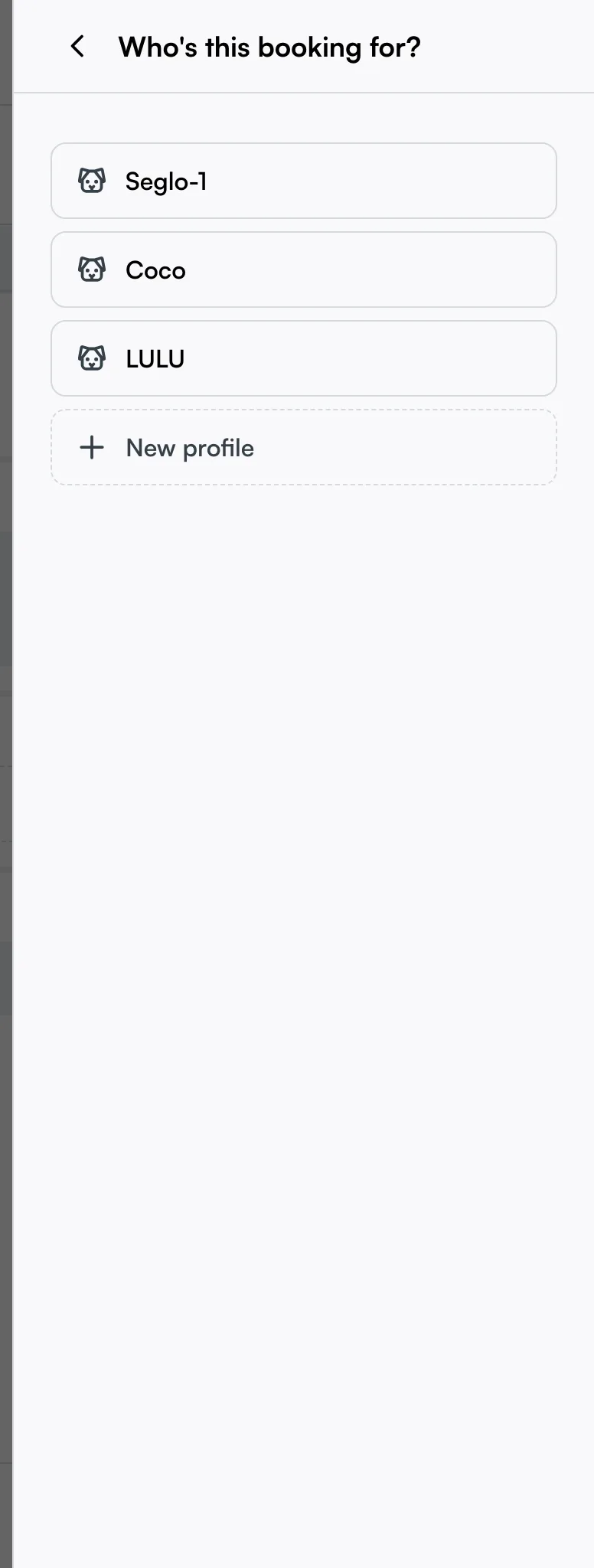
Add a pet without leaving the booking
Choose New profile from the pet picker, enter the pet's details and save. This creates a saved pet under the selected client, ready for its services and future bookings. The questions come from your shop's Pet Card setup.
Manage a client's profiles from their card
Open Clients → Directory and select a pet parent to see their pets. Select a pet to read its Pet Card, or use the three-dot menu beside the pet for Edit and Archive.
The client's own Self profile is hidden from this list and can't be edited or archived — it's managed as the customer record itself.
Edit a profile
Edit opens the profile's own intake form, pre-filled with its current answers, plus two fields that live outside the form:
- Name — your team's name for this pet. Customers see the name they gave it instead; see Names customers see.
- Standing note — a free-text note your staff writes once and pins to the pet permanently. Use it for handling requirements and trim preferences your team needs on every visit. The standing note shows pinned on the calendar's Activity tab and when you open the pet's card.
You can edit the pet’s saved answers here too. Save the correction so it appears on the pet’s record and can prefill a future booking. This edits one pet; use Settings → Pet Card to change which questions your shop asks.
Pricing-factor answers appear here too
If any of your services use factor-based pricing (weight tiers, coat condition, and so on), the answer a customer gives at booking time is saved onto the profile with the pet’s other saved answers — there's no separate "Traits" list to check. Wherever this profile's details are shown (the client card, the calendar's Activity tab, kiosk), the pricing-factor answer sits alongside the pet’s other details in one combined list. If a customer answers the same question at booking that your Pet Card also asks (for example, both ask for weight), the booking-time answer is the one shown.
Hide a pet you no longer book
Open Clients → Directory, select the pet parent and use the pet's three-dot menu to choose Archive. The pet stops appearing in the booking picker, while their past booking history stays available.
Read any Auto Book message shown before choosing Archive anyway. Archiving a pet takes it out of the owner's Auto Book; archiving the last pet on it ends Auto Book for that owner. Restoring the pet later does not restart it; set up Auto Book again for that owner if they still want it.
Restore a pet archived by mistake
- Open the pet parent in Clients → Directory.
- Select Show N archived at the bottom of their profile list.
- Open the archived pet's menu and choose Restore.
The profile becomes available again. If archiving ended the owner's Auto Book, set it up again from their record.
Choose questions your customers can answer consistently
Use the existing Pet Card questions for details such as breed and weight before adding your own. Customers then answer the same question on each visit. Custom questions use the answer choices you configure in Settings → Pet Card.
Tips
- Need to change the questions on every pet? Open Settings → Pet Card, not the customer Forms list.
- A pet showing two profiles usually means one was made by the customer and one by staff. Keep the fuller record and archive the duplicate — its history stays attached.
- Edit the right dog. Changing one pet’s saved answers updates that pet’s record. Use Settings → Pet Card to change the questions for the whole shop.
- Archived, not deleted. Can't find a profile you retired? It's under Show N archived — Restore it from there.
Related
- Forms — send separate customer questionnaires.
- Client directory — the customer accounts profiles belong to, and where you manage them.
- Names customers see — which client and pet names reach your customers.
- Factor-based pricing — where pricing-factor answers that also appear on the profile come from, and the "Kept across visits?" setting.
Related