Credits
Check the credit used by automated SMS and AI calls, top up, and manage auto top-up. Team calls and messages are included separately in Seglo Phone.
Updated 9 October 2026
Automated SMS and AI call minutes are paid from this balance. Standard Australian calls, SMS and MMS your team sends through Seglo Phone are included in its separate plan under fair use. Use this page to check your balance, add credit and manage auto top-up.
Open in app: Credit
Read what your balance is really telling you
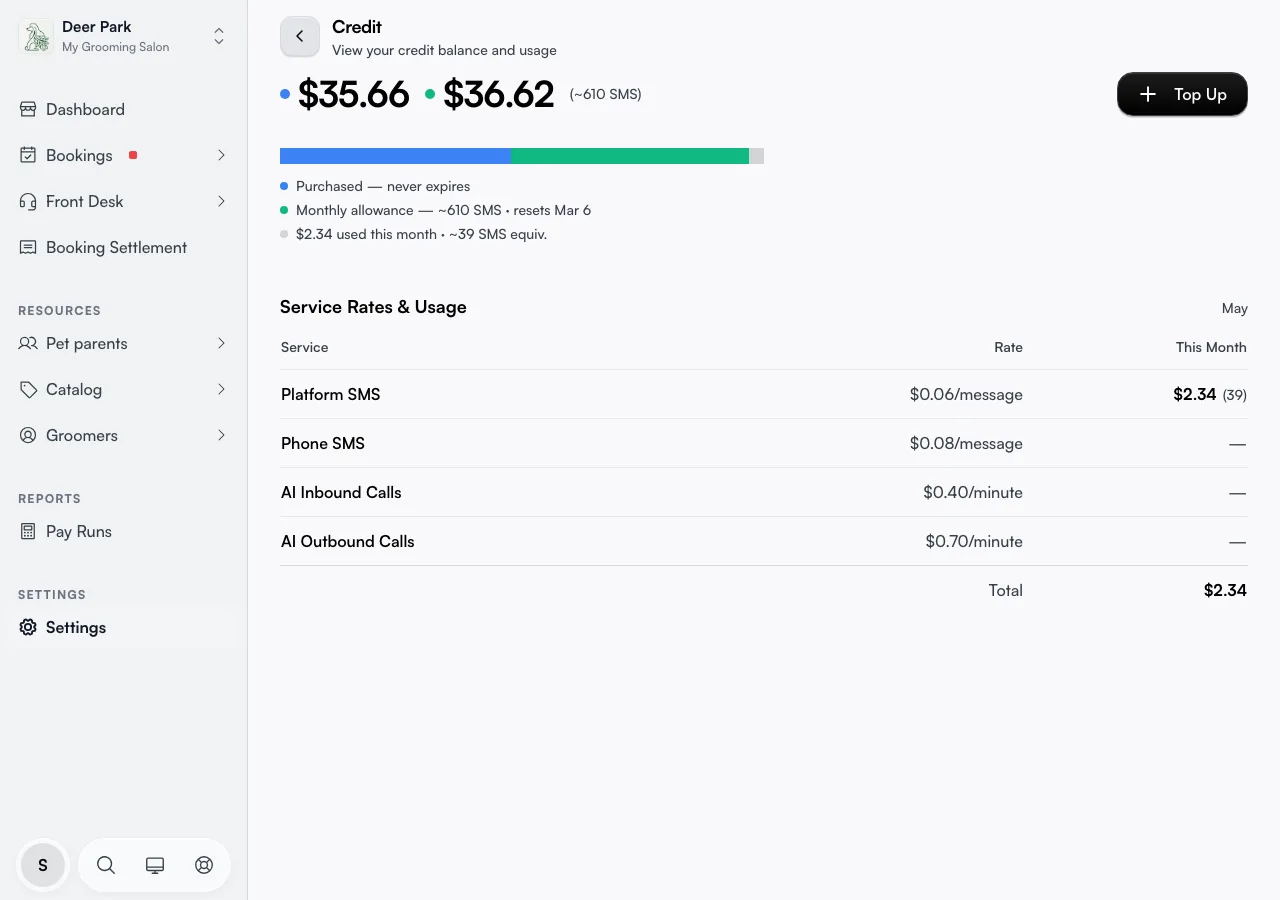
Open Settings → Credit. Available credit at the top is everything you can spend right now. Below it, two cards show where that credit comes from, and they behave very differently:
- Purchased credit is what you topped up. It never expires, so it carries over month to month.
- Monthly allowance is credit included with your Bookings plan. It shows what's left this cycle, renews each billing cycle and doesn't roll over. Last renewed gives the date.
Seglo always spends your monthly allowance first, then your purchased credit, so the credit you paid for lasts as long as possible.
Not every plan includes an allowance. On the current plans, Free and Starter include none, Growth includes A$5 a month and Scale A$10 a month shared across all its locations. If you had your account before these plans, your plan keeps the allowance it already had. Your own amount is on Subscription → Bookings. With no allowance, every automated SMS and AI call minute comes from purchased credit. Email reminders never use credit.
Add credit right now
- Click Top Up at the top right.
- The drawer opens on the Auto Top-Up tab by default — switch to One-Time to add credit just this once.
- Pick a preset — $25, $50, $100, or $200 — or type your own in Custom amount (minimum $5, maximum $1000).
- Check the summary: it shows the credit, GST (10%), and the total you will actually be charged.
- Click Pay to charge your saved card. The balance updates within a few seconds.
Set it to refill itself (auto top-up)
This is the setting that keeps you out of trouble. Instead of watching the balance, you tell Seglo to top up on its own the moment you run low.
- Click Top Up, then stay on the Auto Top-Up tab.
- In When credit balance falls below, set the trigger point ($10 to $500).
- In Automatically add, set how much to add each time ($10 to $1000). The line beneath shows the GST-inclusive charge.
- Click Enable Auto Top-Up.
Once on, Seglo charges your default card whenever your combined balance — allowance plus purchased — drops below your trigger, at most once every 24 hours, and emails you after each charge. To change the amounts later, reopen the drawer and click Update Settings; to switch it off, Disable.
Know that enabling it can charge you immediately
This one surprises owners. If your balance is already below your trigger when you turn auto top-up on, Seglo does not wait for the next check — it charges your card straight away (unless a charge already ran in the last 24 hours). So enabling it at $3 with a $10 trigger means a top-up happens then and there, not tomorrow.
It also re-checks your card with the payment processor at the moment you enable. If the card on file has expired or is no longer valid, enabling fails with a clear message asking you to update your payment method — fix it under Billing and try again.
Get the rates and this month's spend in one place
The Service Rates & Usage table lists every billable service, today's rate, and what you have spent this month:
| Service | Charged per |
|---|---|
| Automated platform SMS | segment |
| Standard team SMS/MMS through Seglo Phone | Included in Phone under fair use |
| AI Inbound Calls | minute |
| AI Outbound Calls | minute |
The rate shown is today's rate — a past charge used whatever rate applied at the time, so an older message can cost a little more or less than the current figure. The Total row matches the "used this month" amount in the balance section. For delivery counts and email volume (email is not drawn from credits), see Usage.
Catch the low-balance warning before customers do
You do not have to live on this page to know you are running low. When your balance falls under $5, the figure turns amber and a Low Credit Balance banner appears on your dashboard. At $0 it goes red, the banner reads AI Services Blocked, and a dismissable bar warns that AI and automated SMS are paused until you top up. You can collapse the zero-balance bar for the session, but it comes back next sign-in — by design, so a paused account never goes unnoticed.
Add a billing address or card the first time
You cannot top up — manually or automatically — without a billing address and a card on file. If either is missing, the Top Up drawer detects it and walks you through adding it right there before letting you continue. You can also manage both anytime from Billing.
Tips
- At zero, services that use credit pause. Automated SMS and AI calls need credit. Auto top-up can refill the balance at your chosen threshold; standard team calls and messages through Seglo Phone do not use this balance.
- Enabling auto top-up at a low balance charges you now, not next cycle. Expect an immediate top-up (and email) if you are already under your trigger.
- Auto top-up needs a valid default card. If it ever silently stops working, the card has likely expired — re-check it under Billing. You'll get an email each time a charge fails.
- Purchased credit never expires; the monthly allowance does. Topping up early is safe. Nothing you pay for is lost at the reset.
- On the current Free or Starter plans, set up auto top-up before you rely on automated SMS. Those plans include no allowance, so the first text already needs purchased credit.
Related
- Usage — email and SMS delivery analytics, with no credit cost for email.
- Billing — the card and billing address used for every top-up, plus your subscription.
- Phone numbers and routing — manage your business numbers and where calls ring.
Related