Discounts and promo codes
Give staff tidy discount buttons at the till, run promo codes online, and lock a code to a single customer — all logged for your reports.
Updated 17 September 2026
When you want every price drop to be deliberate and traceable — not a vague manual override that wrecks your reports — this is where you set the rules. You give staff a short list of reasons to pick from at the till, and you run the promo codes customers type in when they book online.
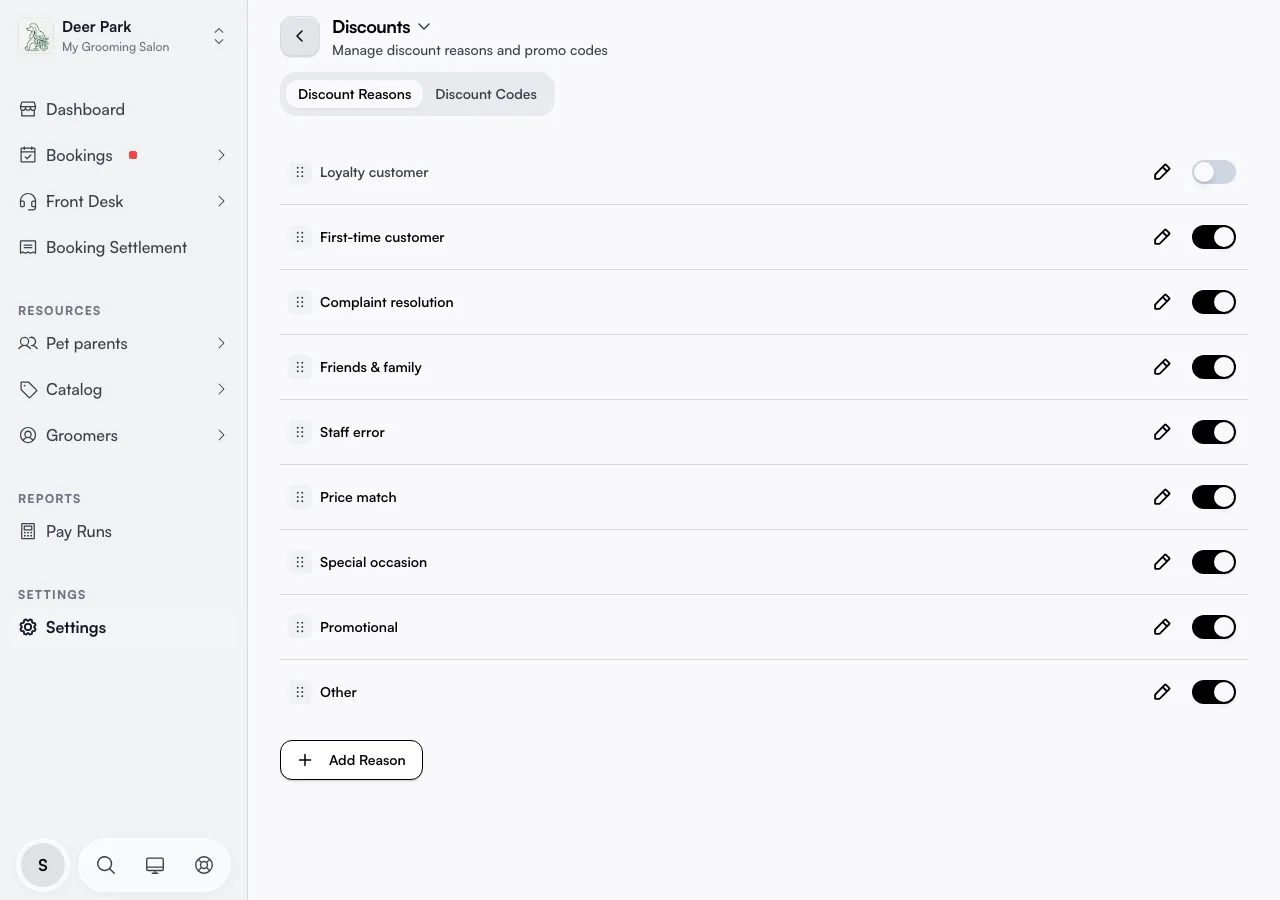
The page has two tabs, Discount Reasons and Discount Codes, and opens on Discount Reasons.
Open in app: Discounts
Give staff a clean list of discount reasons
A reason is the label staff attach to a discount they apply themselves — at checkout, or right when they create a new booking — so you always know why a price was lowered — "Loyalty", "First visit", "Service recovery". Click Add Reason, type a name, and click Add. The order on this tab is the exact order staff scroll through when they discount a visit, so drag your most-used reasons to the top.
The pencil renames a reason and the switch turns it on or off. To retire one, switch it off rather than deleting it — past discounts keep the reason they were given, so old takings still read correctly. Disabled reasons stay listed here (greyed out) but vanish from the checkout list.
Run a promo code customers enter online
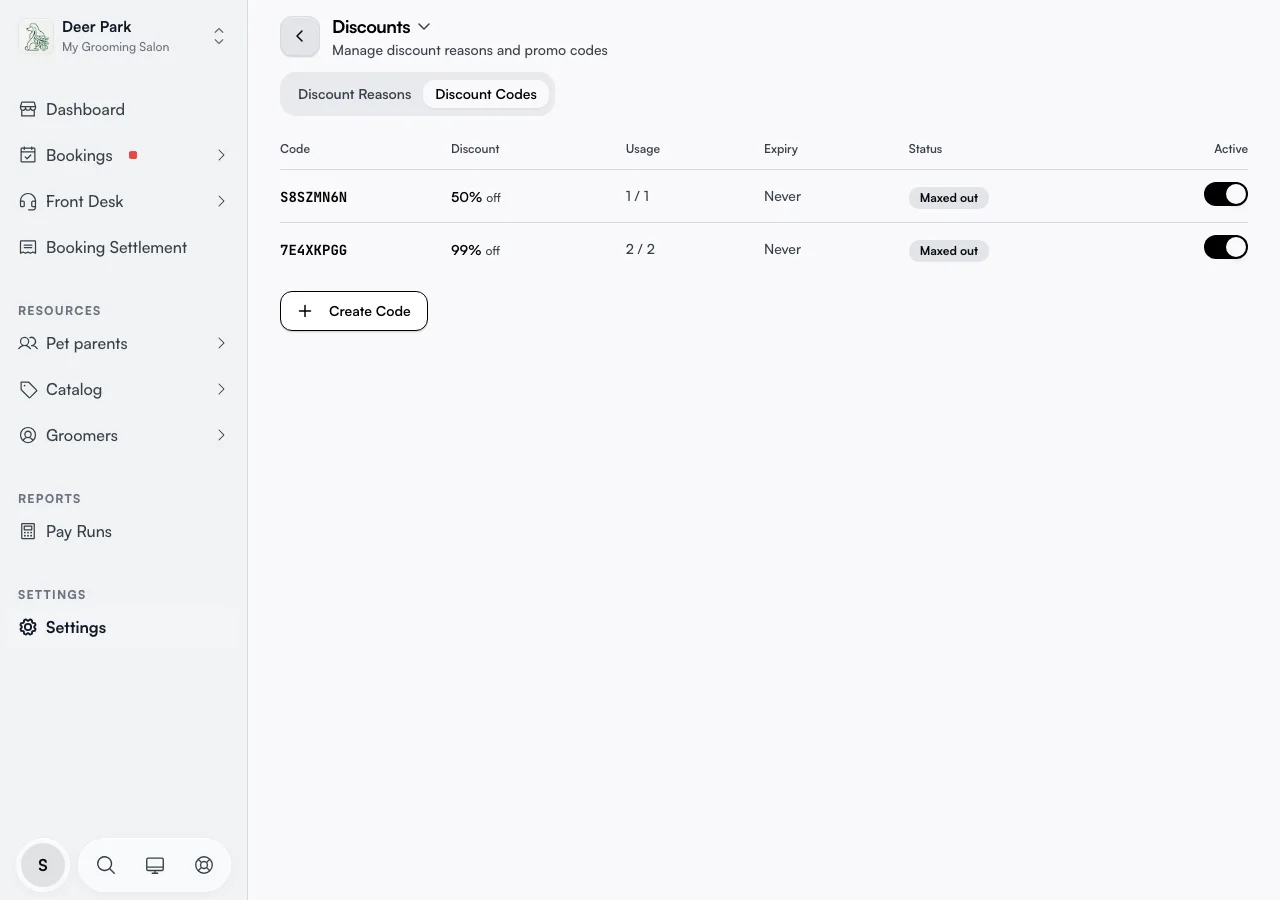
Open Discount Codes and click Create Code. Type a code or tap the refresh button to auto-generate one — generated codes deliberately skip easily-confused characters (no letter O or zero, no letter I or one), so they're safe to read aloud over the phone. A code is 3 to 30 characters, saved in capitals, and may contain letters, numbers, hyphens and underscores.
Choose Percentage (%) for a share off the bill or Fixed Amount ($) for a set sum, then enter the value. The moment you save, the code works at checkout — there's no separate publish step.
Cap how often a code can be used, and when it expires
These optional limits sit in the same create panel and are the controls most owners skip — then wonder why a code spread further than intended:
- Max Uses — leave it empty for unlimited, or set a number to retire the code automatically once it's hit. Each booking counts as one use, even a group booking for several pets or people.
- Expiry Date — the code stops applying after this date. Leave it blank for no expiry.
- Restrict to Email — locks the code to one customer's email address. Anyone else who types it is told it isn't available for their account.
A code that runs out of uses shows Maxed out; one past its date shows Expired. Both stop applying on their own — you don't have to switch them off. The Active switch on any row pauses a code by hand without deleting it, so a seasonal promo can sleep until next year.
Restrict a code to one customer
Use Restrict to Email on any code (see above) to hand a customer a personal, one-off deal — set Max Uses to 1 and lock the email to theirs. The code appears in the Discount Codes table with that customer's email shown underneath it.
Know exactly how much comes off
The discount never digs into your pocket past the bill itself. A fixed amount larger than the total simply takes the price to zero, and a percentage is calculated against the subtotal then capped there too. On a group booking, a percentage is worked out on the whole group's total and then split proportionally across each person or pet, so the maths always adds up to the figure you intended.
One discount applies per booking. If a booking already carries a discount — a reason picked at the till or a code — a second one won't stack on top; remove the first to swap it.
If you edit the bill afterward — add, remove, or swap a service on a booking that already has a discount applied — the discount recalculates automatically against the new total, so it never goes stale. A percentage discount keeps taking the same share of whatever the subtotal now is; a fixed-dollar discount is capped at the new total if the bill drops below it, and grows back to its full value once you add items again. On a group booking, editing one person or pet's line only reshuffles that group's proportional split.
Staff aren't limited to checkout: the Add a discount step in the New Appointment sheet offers the same code-or-manual choice while the booking is still being created, opening on the code field by default with the manual %/$ + reason + note one tap away. Either path lands on the same total.
Tips
- Codes are case-insensitive. "SUMMER25" and "summer25" are the same code, so it doesn't matter how a customer types it.
- Set Max Uses before sharing a public promo. A code with no limit can be forwarded endlessly — a single screenshot on social media can blow your margins.
- Switch off, don't delete. Disabling a reason or code keeps every past discount labelled correctly in your reports; deleting risks orphaning that history.
- An email-restricted code is account-specific. If a customer says a code "doesn't work", check it isn't locked to someone else's address — that's the usual cause.
- For rewards that build up automatically as customers keep coming back, use Loyalty rewards instead. It's a separate retention system, not a one-off code.
Related
- Loyalty rewards — points-based rewards that accumulate as customers keep coming back.
- Gift cards — prepaid balances customers redeem, separate from discounts.
- Finalizing payment — where staff pick a discount reason and take payment.
Related