Billing
Keep your subscription paid, get the right business details on your invoices, and show the correct tax line on customer receipts.
Updated 2 October 2026
This is where you keep your subscription from lapsing, put the right company details on the invoices Seglo issues you, and decide whether your customers see a tax line on their receipts. Getting the card and tax setup right here is what stops a failed charge from pausing your service and stops your receipts from showing the wrong total.
Each item is a row. Click a row to open its panel, make your change, and save — the tax panel saves only when you've actually changed something, and the address and card panels each have their own save. Billing is in the web app only (Settings → Billing); the Seglo appointment app and the Seglo Phone app don't have it. Changing cards needs permission to manage the Seglo subscription, which the business owner has.
Open in app: Billing
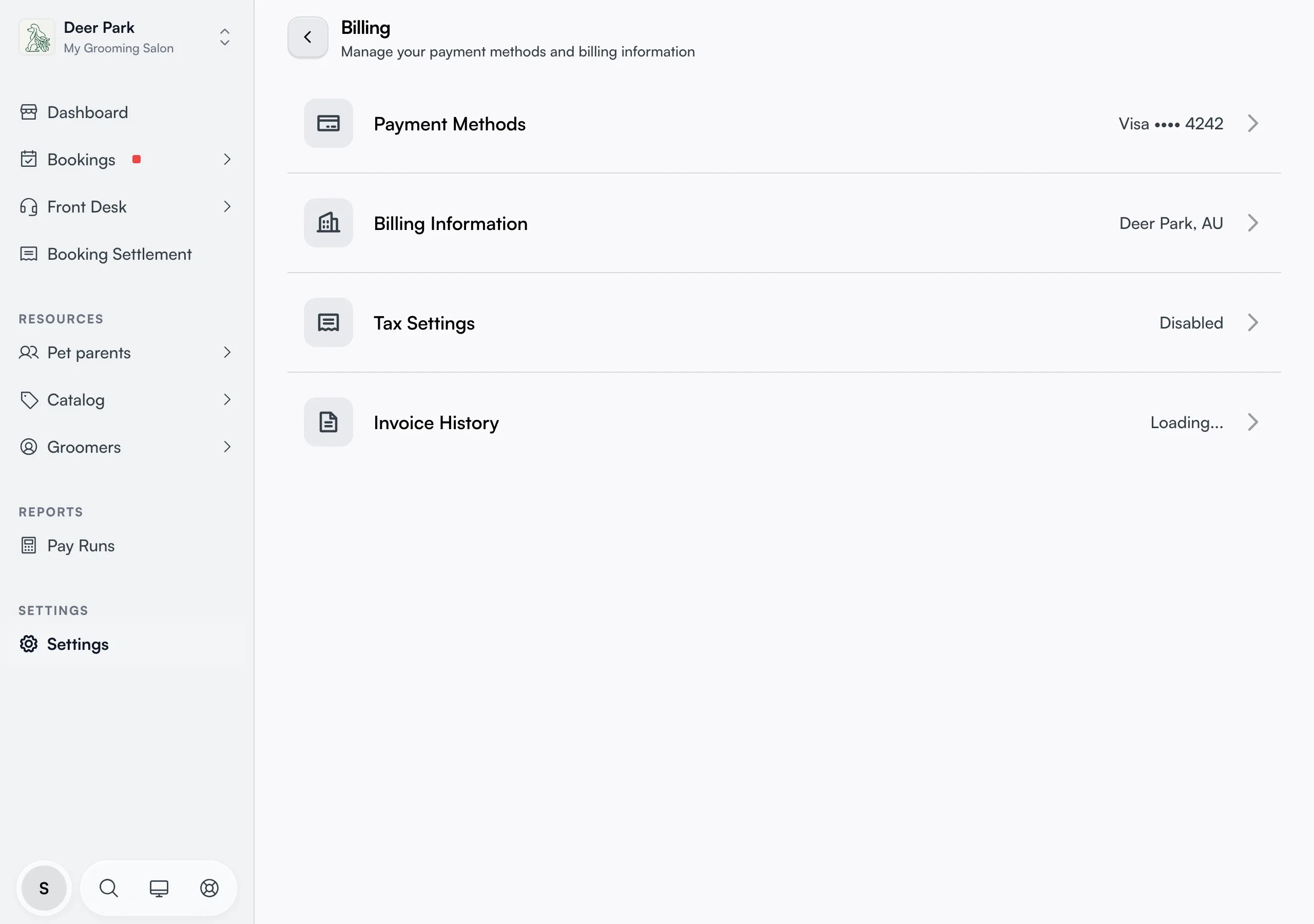
Check your whole billing setup at a glance
Each row carries a one-line summary so you can spot a problem without opening anything. Payment Methods shows your default card (or No payment methods, the one to watch for), Billing Information shows your city and country, Tax Settings shows your tax label and rate or Disabled, and Invoice History shows how many invoices you have and the total you've paid. If a summary says No payment methods, that's the warning sign — your next subscription charge has nothing to charge against.
Keep your subscription from lapsing
The card on file is what Seglo charges for your subscription. If it expires or gets removed without a replacement, the next charge fails and your service pauses, so always keep at least one valid card here.
Click Payment Methods, then Add Payment Method, and enter the card in the secure card form. Each saved card shows its brand, last four digits, and expiry, and the one being charged carries a Default badge.
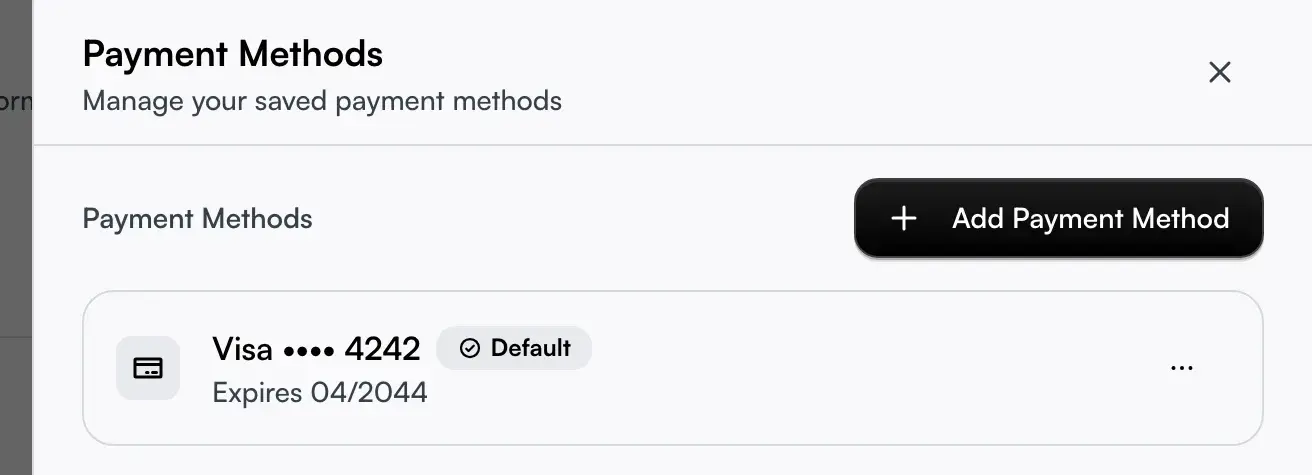
Switch which card gets charged
Adding a second card changes nothing on its own — the Default card is the only one charged. To switch, open the ⋯ menu on the card you want and choose Set as Default (this option only appears on cards that aren't already the default).
To remove a card, use Remove in the same menu and confirm. You can't remove the default card — its Remove option is greyed out until you make another card the default first. This is deliberate: it stops you accidentally leaving your account with no card to charge.
Put the right business details on your invoices
Click Billing Information to set the company name and address that print on the invoices Seglo issues you. If no address is saved yet, the form opens straight away; otherwise click Edit Address to change it.
A faster way to fill it: click Use Business Address at the top of the form and it pulls in your first business location's address and your account email automatically, so you don't retype what Seglo already knows. You can then adjust any field. Email, street, city, postal code, and country are all required before you can save.
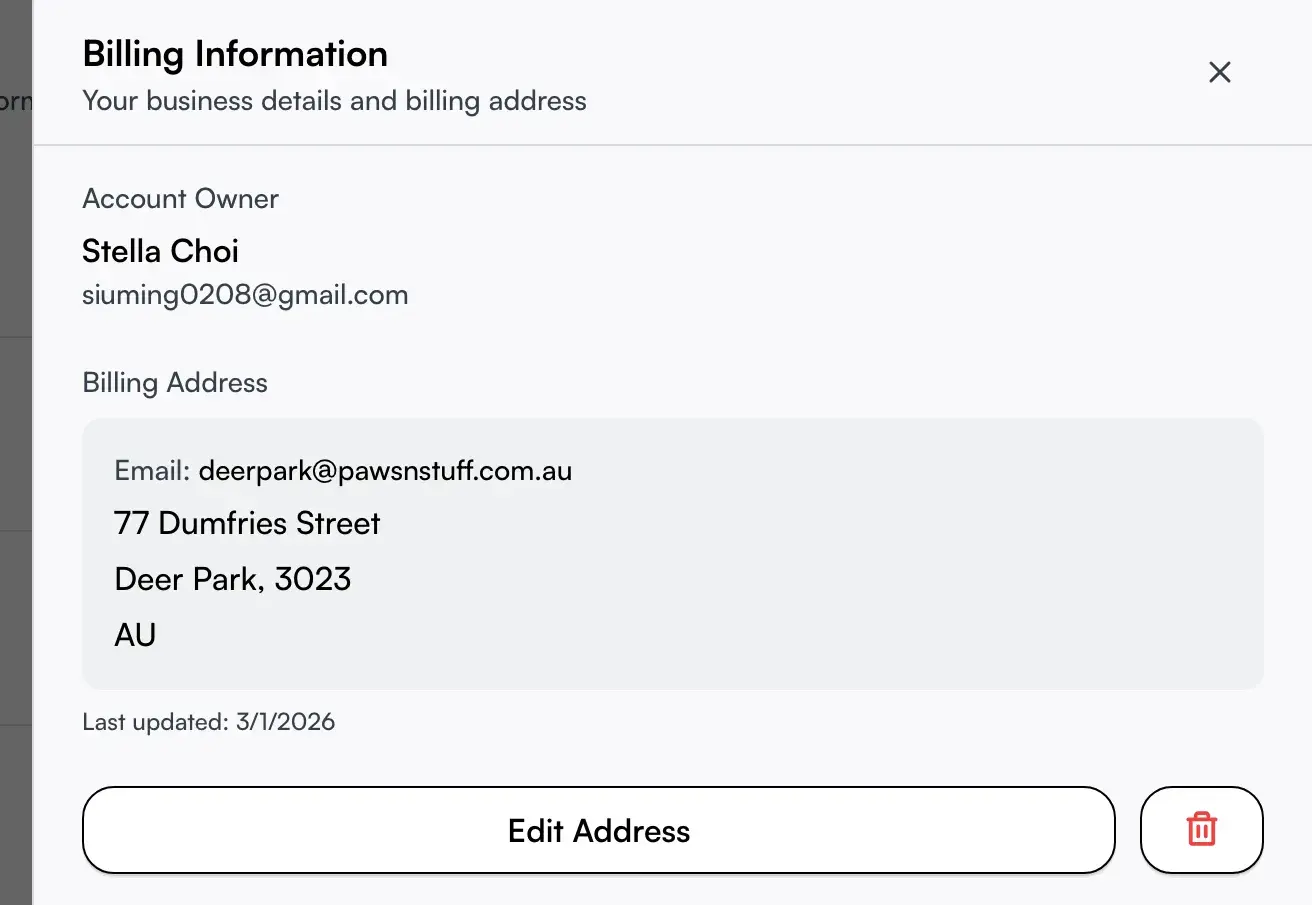
Use a different billing email
The email on your billing address doesn't have to be your login email. Enter a separate one — your accounts or bookkeeping inbox, say — and Seglo's invoices go there. When it differs from your account email, the saved view shows it as a separate Email line so you can tell at a glance which inbox your paperwork lands in.
Show tax on the receipts you give customers
Tax Settings control the tax line on your customers' receipts — not what you pay Seglo for your own subscription. Click Tax Settings and turn on Enable Tax on Receipts; the rest of the fields only appear once it's on.
Seglo reads your billing country and shows that country's standard rate as a Country default note (for example GST at 10% for Australia) so you know the expected figure before you touch anything. To fill the fields in one tap, use a Quick Preset — there's one for Australia, New Zealand, the UK, Singapore, Germany, Canada, and France, each setting the right label and tax-ID label together. Or set Tax Label (such as "GST" or "VAT") and Tax Rate (%) by hand.
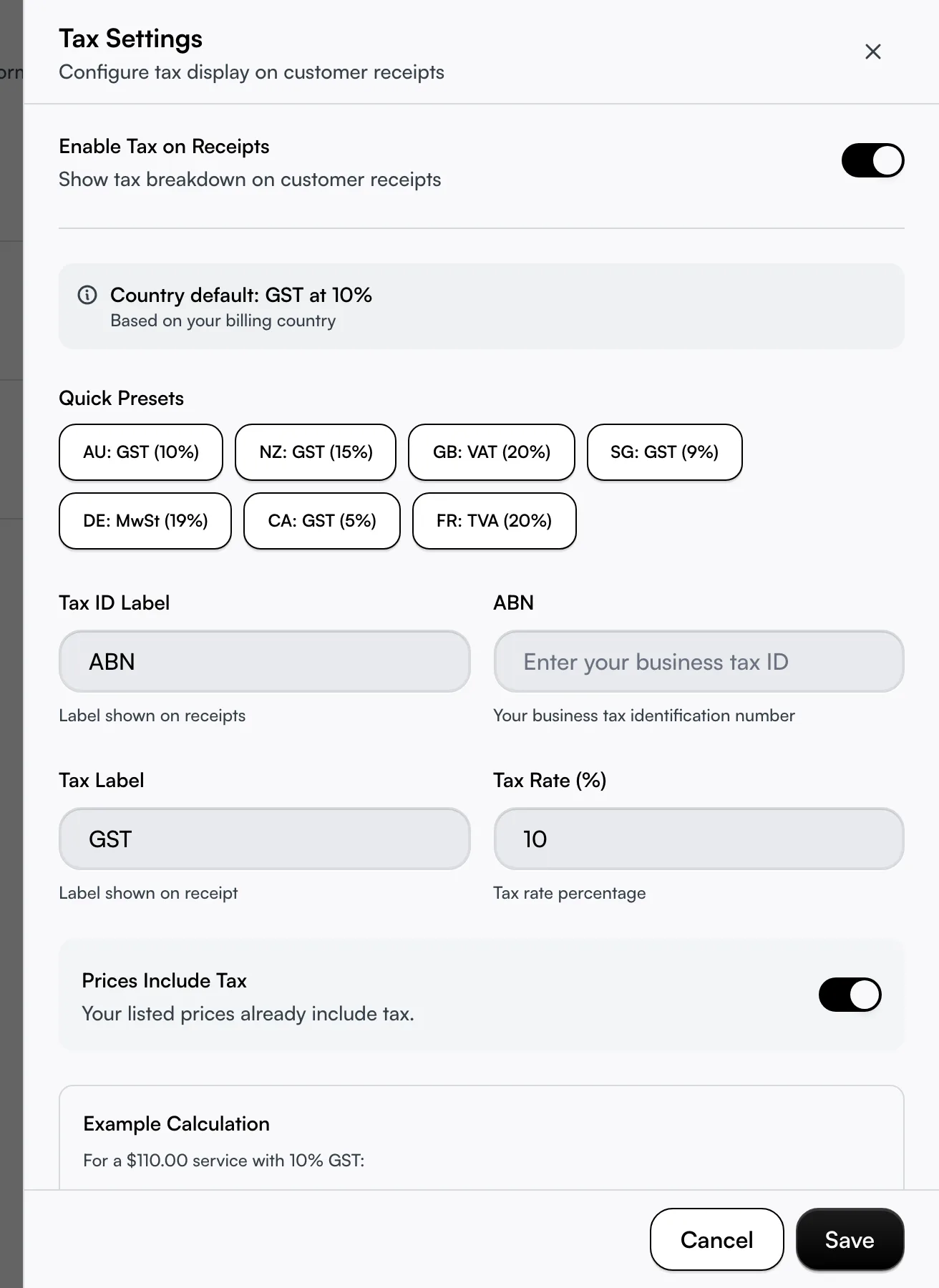
Print your tax number on receipts
Most owners miss this: below the rate sit two fields that put your registered tax number on every receipt. Tax ID Label is the heading shown — ABN, VAT No., GST No., whatever fits your country — and the field beside it holds the number itself. A Quick Preset fills the label for you (NZ becomes "GST No.", the UK "VAT No."), but the number is always yours to type. Leave them blank and the receipt simply omits the line.
If your Tax ID Label is ABN, Seglo checks the number as you type: an amber note appears under the field if the digits don't pass the standard ABN check-digit test, and once you enter a real, registered ABN a small card appears underneath showing the entity name Australian Business Register has on file, its ABN status, and whether it's GST-registered. Neither the warning nor the card blocks you from saving — they're a sanity check, not a requirement, so you can still save an ABN Seglo can't verify.
Match tax to how you quote prices
The Prices Include Tax toggle has to match how you advertise. On means your listed prices already have tax baked in (the usual setup for service businesses), and the receipt extracts the tax out of the total. Off means tax is added on top of your listed price.
The Example Calculation underneath shows exactly how a $110 service breaks down under your current setting — subtotal, tax, and total. Check it before saving: if this toggle is wrong, every customer total will be off by the tax amount, and the example is the quickest way to confirm the breakdown reads the way you intend.
Turn your receipts into tax invoices
Once Enable Tax on Receipts is on and you've entered a tax number, every receipt you send — the emailed receipt and the receipt link customers open (/r/...) — automatically becomes a tax-compliant document. The heading changes from "Payment Confirmation" to "Tax Invoice", your tax number appears under your business name, and the total splits into a subtotal (excluding tax) and a tax line at your configured rate, so the breakdown is there without you doing anything extra per booking. Turn tax off, or leave the tax number blank, and receipts go back to a plain payment confirmation with no tax lines.
If you haven't turned tax on yet and your business is in a country Seglo has a tax preset for, you'll see a quiet reminder next to the receipt controls at checkout ("Receipts won't show GST/ABN — set up tax invoices"). Click it to jump straight to this page with Tax Settings already open — it doesn't interrupt the payment you're taking, and it disappears for good once tax invoices are set up.
Find, open, and download past invoices
Click Invoice History to see every invoice Seglo has issued you, most recent first, with Load More to reach older ones. Each one says which product it's for: Bookings, AI Receptionist, Seglo Phone, Seglo Phone setup fee, Credit top-up or Other. Its status badge reads Paid, Unpaid (issued but not paid yet), Draft, Void or Uncollectible (a charge that couldn't be collected, worth chasing your card).
To see one product's invoices on their own, open its page under Subscription (for example Subscription → Seglo Phone). Those lists show the date, amount and a View link; download PDFs from Invoice History here.
Each invoice gives you two separate actions: one opens the full hosted invoice in a new tab to view online, the other downloads the PDF for your records. An invoice may show one, both, or neither depending on what's available for that charge.
Tips
- No payment methods in the summary is the one to act on — with no valid card, the next subscription charge fails and service pauses until you add one.
- A second card does nothing until you Set as Default. The default is the only card charged.
- You can't delete your billing address while you have an active subscription or a saved card — remove those first.
- Tax Settings change customer receipts only. Turning on a tax line here never changes what you pay Seglo.
- The ABN check and lookup card only appear when your Tax ID Label is exactly "ABN" — other countries' tax IDs aren't checked, and neither check ever stops you saving.
- An Uncollectible invoice means a past charge failed to collect. Check the card on file before your next renewal.
- Seglo Phone is billed separately. A failed Seglo Phone payment doesn't affect your Bookings plan, but your number can stop ringing, so update the card.
Related
- Subscription plan — the plan that drives your recurring charge.
- Credits — top up your pay-as-you-go balance for SMS and AI calls.
- Usage — calls, texts and dictation by month.
Related