Website chat
Put a chat on your own website. Visitors ask their question, leave a mobile, and your team replies by text from your Seglo number.
Updated 19 November 2026
Someone on your website at 9pm wants to know if you can fit a matted cavoodle in on Saturday. They won't fill in a contact form and they won't ring after hours. Website chat puts a chat button on your own website: they type the question, leave a mobile, and your team answers by text from your Seglo number.
Open in app: Messaging channels
Before you start
You need a Seglo number that can send texts. Each number has its own chat, so a shop with its own number gets its own chat. Website chat isn't part of the paid Messaging channels add-on. Changing it needs permission to edit settings; anyone who can see settings can read the install code.
Turn on website chat for a number (web app)
- Open Settings → Messaging channels. Website chat is the first section.
- Each number that can text has a row, with its shop. Switch it on.
- Under Appearance, write the Greeting visitors read first (up to 140 characters) and pick a Colour. Leave the greeting empty for "Hi, how can we help?". What visitors see follows every change.
- Click Save appearance.
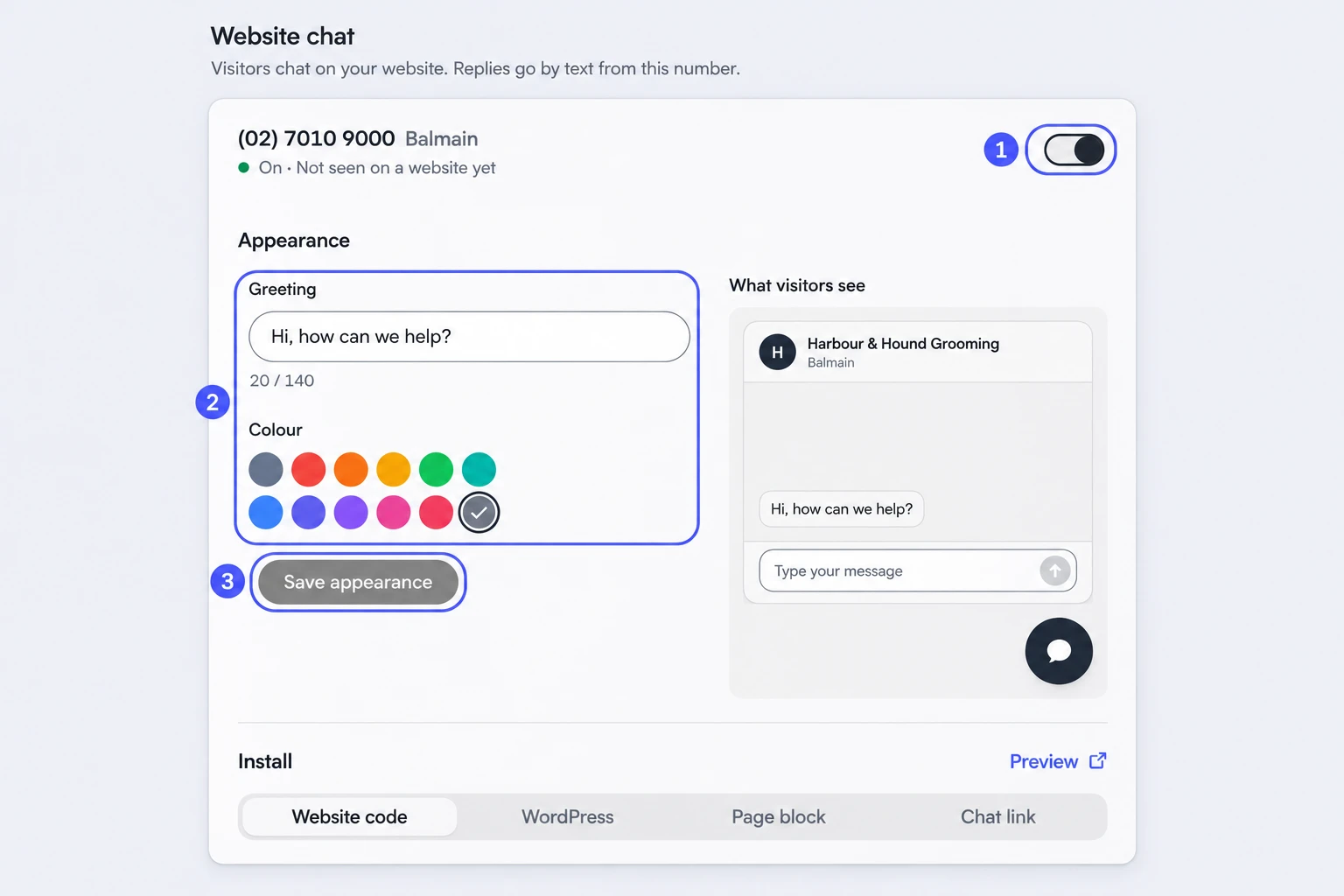
The line under the number says whether the chat is working: Not seen on a website yet until a page with the chat loads, then Seen on with the website and how long ago.
The same page is in the Seglo appointment app under Settings → Messages → Messaging channels, and in the Seglo Phone app under Settings → Messaging channels, with the same switch, greeting, colour and preview.
Put the chat on your website (web app)
Under Install, choose how your website is built. All four ways show the same chat, so you can change your mind later.
- Website code: pick your builder under Your website (Wix, Squarespace, Webflow, Framer, Shopify, Google Tag Manager or another site) and follow the step shown for it. Copy the line and paste it where the step says. The chat button sits bottom-right on every page.
- WordPress: click Download plugin. In WordPress go to Plugins → Add New → Upload Plugin, choose the file and activate it. Then open Settings → Seglo Chat, paste the chat key (Copy chat key) and save.
- Page block: for builders that only take an HTML block, such as GoDaddy. Paste the code where the chat should sit on the page. It shows the chat itself, with no button.
- Chat link: copy the link for your Instagram bio or emails, or click Download QR code and print it for the counter. It opens the chat on its own page.
Preview opens the chat link so you can try it as a visitor would.
In the Seglo Phone app, Share install code sends the website code and the chat link to whoever looks after your website, and Copy chat link copies the link.
What your visitor sees
They tap the button and ask their question. There's no form first. Once their first message is sent, the chat asks Where can we text our reply? with a mobile field and an optional first name. As they type the mobile, the button reads Text replies to that number, so they can see exactly which number they're agreeing to.
- They leave a mobile: the chat confirms the team will reply by text to that number, partly hidden. They can keep adding details in the chat.
- They tap Keep chatting here: they stay in the chat and see your replies there. Get replies by text, above the message box, lets them leave a mobile later.
Only Australian mobiles are accepted. Leaving a mobile doesn't send them anything; nothing goes out until someone on your team replies.
Back in the same browser within 7 days, they pick up the same chat. After 7 days with no messages it starts fresh. Start a new chat in the ⋯ menu starts one any time; the old chat stays with you.
Reply to a website chat (all three apps)
Website chats arrive in Inbox on the web app, the appointment app and the Phone app, with a Website badge. They're named by the visitor's first name, or Website visitor. You get the usual new customer message notification.
Before the visitor leaves a mobile, the chat shows No mobile yet under the name. Your reply appears in their chat window.
Once they leave a mobile, the website chat moves into the text conversation for that mobile on the same number. That's the conversation you already have with them, or a new one, linked to their client the same way an incoming text is. It comes back to the top as unread. Each website message carries a small Website tag, and Website chat · mobile given by the visitor marks where the website chat starts. Reply as you would to any text: it goes from your number to their mobile.
Every reply is sent by a person on your team. The AI receptionist, AI replies and the away message don't answer website chats. You also can't schedule a message in a website chat.
A website chat with no mobile that goes quiet for 7 days ends. It shows This website chat has ended. The visitor didn't leave a mobile. and you can't reply.
Move a website chat out of the wrong conversation
Visitors mistype numbers, or give a partner's. If a website chat joined the wrong text conversation, click Move out under the Website chat · mobile given by the visitor marker and confirm. Its website messages go back to a separate website chat marked No mobile yet, and the visitor is asked for a mobile again. Texts, notes and labels stay where they are.
If texts to that number were scheduled after the website chat joined, the confirm step offers to cancel them, ticked by default. A text conversation the website chat created that is now empty is removed.
Show the chat only on your own website
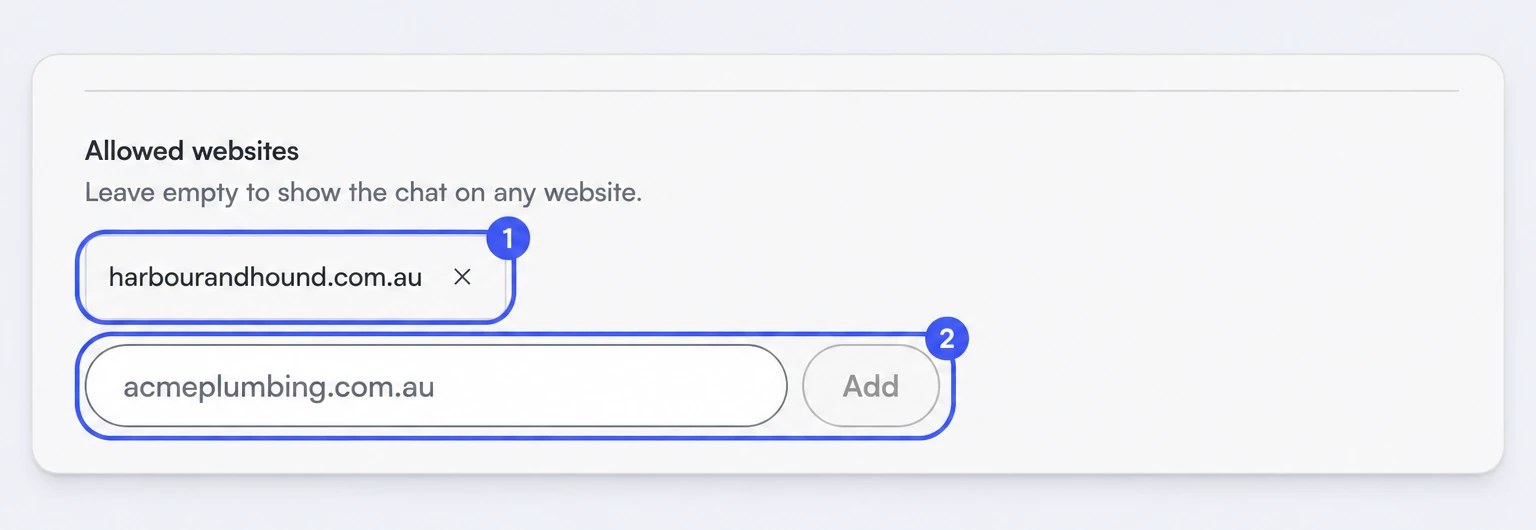
Anyone can copy your website code. To keep your chat off other websites, add yours under Allowed websites, up to 10.
- An empty list shows the chat on any website.
- A website name covers its subdomains.
yourgrooming.com.aualso coverswww.yourgrooming.com.auandbook.yourgrooming.com.au. - On a website that isn't listed, the chat button doesn't appear, and a page block says Chat isn't available on this website.
- The chat link and QR code always work when opened on their own.
Turn website chat off
Switch the number off in Settings → Messaging channels. New chats stop straight away: the chat says Chat isn't available right now. and offers a Call button when the number takes calls. Chats already in Inbox stay, and you can still answer them. Switch it back on and the same code works again.
Tips
- Still "Not seen on a website yet" after installing. Load a page of your website in a browser. If it still says so, check the code went into the area your builder's step names and that the site is published.
- No chat button on your site. If Allowed websites has a list, your website's name must be on it.
- The Website chat switch in Receptionist settings is a different thing. That one lets the AI receptionist answer questions on your Seglo booking page. This page is about chat on your own website, answered by your team.
Related
- Messages and Calls: the Inbox website chats arrive in.
- Team inbox: choose who looks after each conversation.
- Instagram messages: answer Instagram DMs in the same Inbox.
- Phone numbers and routing: the numbers website chat replies from.
Related