
Client loyalty status
Answer 'how many points do I have?', read the full points trail, and correct a balance by hand — plus the rules that decide what an adjustment actually does.
Updated 19 July 2026
When a customer at the counter asks how many points they have, queries a balance that looks off, or deserves a goodwill top-up, this is the page you open. It shows one customer's points, tier, visits, and the complete trail of everything they have earned, spent, or had corrected — and it is where you fix a balance by hand when you need to.
For the program rules themselves — how points are earned, what tiers exist — see the loyalty program overview. This page is about a single customer.
Open in app: Loyalty customers
Find the customer you need
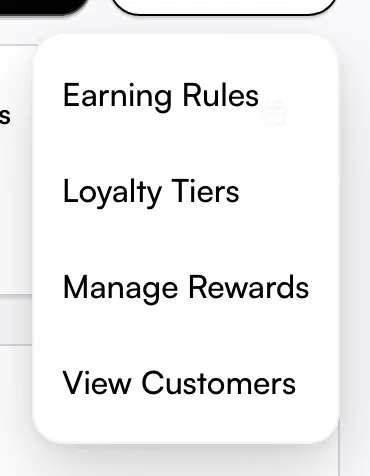
From the loyalty dashboard, open the More menu (the three-dot button, top right) and choose View Customers to reach the roster. From there, click any row to open that customer's record.
The roster is searchable — type a customer's name, email, or phone into the search box. You can also re-order it with the Sort by dropdown: Points (High to Low) to find your biggest balances, Tier Level to group by status, or Recent Activity to see who was in last. A Status badge marks each one Active or Inactive, so you can spot enrolled members who have gone quiet.
Answer "how many points do I have?"
The four cards at the top of a record give you the instant answer:
- Current Points — what the customer can spend right now.
- Lifetime Points — the running total they have ever earned (this is what tiers are usually based on).
- Total Visits — how many completed appointments are on file.
- Current Tier — their tier name, or No tier if tiers are off or they have not qualified yet.
Read the full points trail before you touch anything
Transaction History lists every change to the balance, newest first. Each row shows the date, a type, the points moved, the Balance After that change, and a short description. Added points show green with a plus sign; removed points show red.
The type tells you why the balance moved — and there are four, not two:
- Earned — points from a paid booking, under your normal earning rules.
- Redeemed — points the customer spent on a reward.
- Adjusted — a manual correction someone made by hand (see below).
- Expired — points the system removed automatically because they aged out of your expiry window. These appear on their own, with no one having touched the account.
Reading this first is the whole point: a balance that "looks wrong" is almost always an Expired or Redeemed row doing exactly what it should, not a mistake to paper over.
Correct a balance with a goodwill or fix adjustment
Use Adjust Points (top right of the record) to add or remove points by hand — a goodwill gesture, a fix for a mistake, or compensation when something went wrong.
- Click Adjust Points.
- Choose Add Points or Remove Points at the top of the dialog.
- Enter the amount under Points. The dialog shows the resulting New Balance live as you type.
- Fill in Reason (at least 3 characters, up to 100 — for example "Promotion" or "Correction"). Add Notes for extra context if you want.
- Click Adjust Points. The change lands in the history as an Adjusted row within a few seconds, stamped with who made it and the reason.
Every adjustment is permanent and logged, so the balance always has a clear trail back to who changed it and why.
Know exactly what an adjustment does behind the scenes
Adjustments are not just "+5 / -5" — two behaviours catch people out:
- Adding points also raises Lifetime Points. Because a manual add flows through the same path as earning, it bumps both the spendable balance and the lifetime total. Removing points only lowers the spendable balance; it does not undo lifetime points already earned. So an add then an equal remove does not return the customer to where they started on lifetime totals.
- Manually added points never expire. Earned points age out under your program's expiry window, but a goodwill top-up has no expiry date — it stays until spent. That makes adjustments a clean way to grant points that should not vanish.
When a removal won't go through
The dialog lets you preview a removal that would drop the balance below zero and shows a red negative balance warning — but the save is rejected with an "insufficient points" error. You cannot push a customer's spendable balance below zero by removing more points than they hold. If you need to zero someone out, remove exactly their current balance, no more.
A single adjustment is also capped at 1,000,000 points in either direction, which is far above any real-world correction.
Tips
- Read the history before adjusting. A wrong-looking balance is usually an Expired or Redeemed row, not an error — adjusting on top of it hides the real cause and double-counts.
- Removals can't go negative. The save fails if you try to remove more than the customer currently has, regardless of the dialog's preview. Remove the exact balance to zero someone out.
- Adding restores lifetime; removing does not. Keep that asymmetry in mind when "reversing" an add — a follow-up remove won't reset the lifetime total.
- A manual adjustment does not re-evaluate the tier. The Current Tier stays as it was until the next earning event or a manual recalculation from the loyalty tiers page.
- Use adjustments sparingly. They are for corrections and goodwill — everyday earning should flow from the program's rules, not the Adjust button.
- No loyalty program, no page. If the loyalty module is switched off, the record and the Adjust action are unavailable.
Related
- Loyalty customers — the roster you open these records from.
- Loyalty tiers — how tier levels are set and recalculated.
- Loyalty program — the program overview and how points are earned.
- Clients list — the customer's full profile beyond loyalty.