
Loyalty program
Give your regulars a reason to come back — points on every paid visit, rewards they redeem themselves, and the controls most owners never find.
Updated 19 July 2026
You want regulars to keep choosing you over the salon down the road, and you want it to run itself once it's set up. This is where you turn repeat visits into points customers earn automatically and redeem on their own — no punch cards, no app, no handing anything out by hand.
If you only want a one-off promotion, a discount code is simpler. Reach for loyalty when you have regulars worth keeping and want a standing reason for them to come back.
Open in app: Loyalty
Get a working program live in two clicks
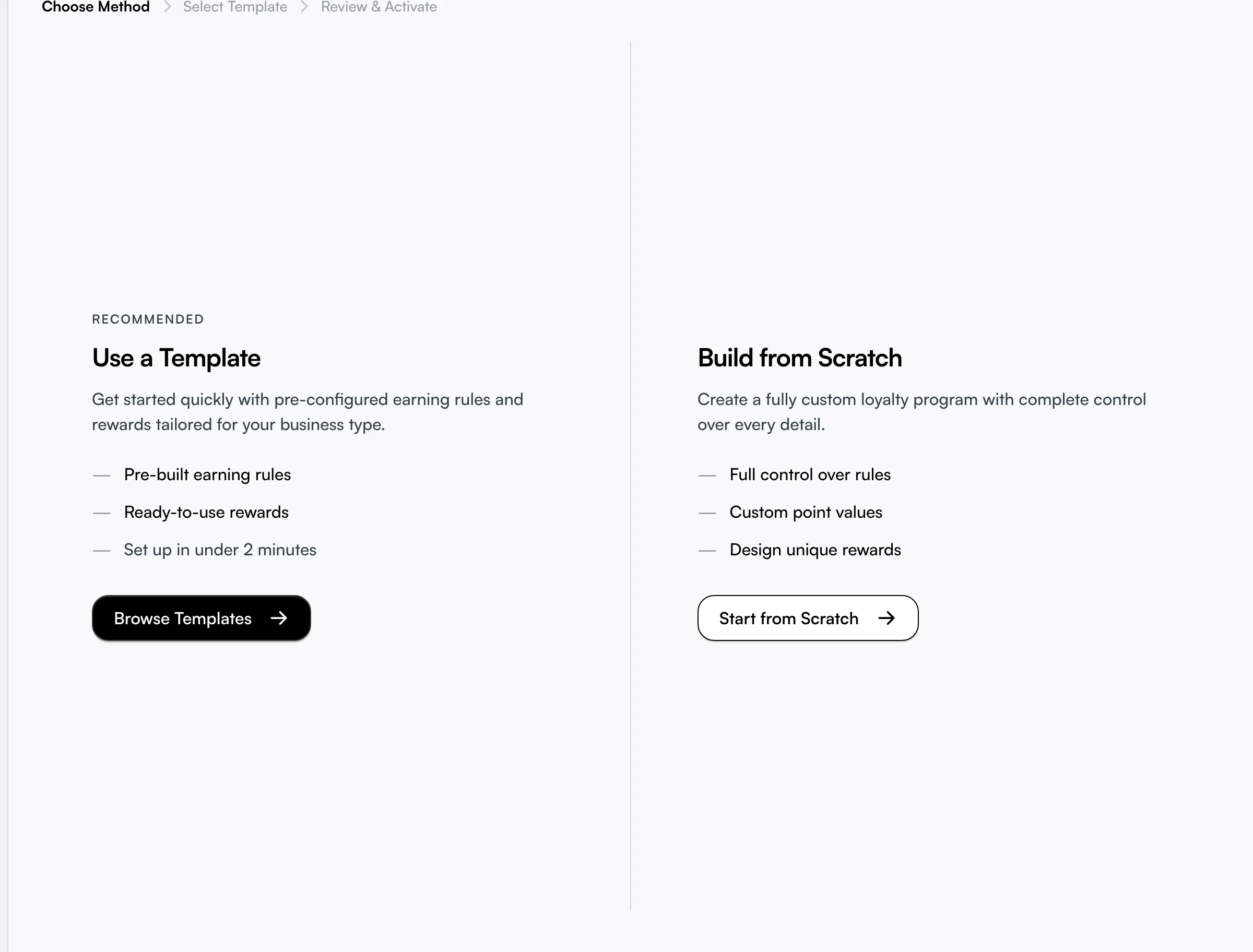
Open Clients → Loyalty. The first time, there's no program yet, so you land on the Choose Method step. Pick Use a Template to start from a ready-made program, or Build from Scratch for full control.
The three templates are not just names — each loads real earning rules and rewards you can keep or change:
- Punch Card — one rule (a point per completed visit), one reward (5 visits = a free service). The simplest thing that works.
- Points Program — points per dollar plus bonuses for visits, reviews, and referrals, with four rewards (three discounts plus a free add-on service).
- Advanced Program — the full set, including a store-credit voucher reward, built for established businesses.
Then on the review step you name the program, choose what you call one point and many (more on that below), decide whether points expire, and activate. From that moment every paid appointment runs your rules and credits points automatically.
Read how the program is performing at a glance
Once a program is active, Clients → Loyalty opens the dashboard instead of the wizard. The four cards across the top show Total Members, Active Members (active this month), points issued this month, and total Redemptions this month. Below them, Popular Rewards ranks what customers actually redeem — the quickest way to see which reward is pulling its weight and which one nobody wants.
Everything else lives behind two buttons: Settings opens the program-wide options, and the More menu holds Earning Rules, Loyalty Tiers, Manage Rewards, and View Customers.

Choose exactly what earns points
Open Earning Rules (in the More menu) to control what gives points. Each rule has a trigger, a calculation type, and a points value. The triggers that work today: Dollar Spent (per dollar, a percentage, or a flat amount), Appointment Completed, Review Left, Referral Made, Birthday, and Visit Milestone (a bonus on every Nth visit, like the 5th and 10th).
Two triggers — Service Booked and Profile Completed — appear in the list but are marked coming soon and award nothing yet, so don't build your program around them.
Most points land after payment is completed, not at booking — so a no-show or an unpaid visit earns nothing. The exceptions are referral points (credited when the referred person finishes their first visit) and birthday points, which are added automatically on the day. See Loyalty earning rules for the full list.
Multiply or stack rules without doing the maths twice
Each earning rule carries two settings most owners never open: a multiplier and a priority. The multiplier lets you run a "double points week" by setting one rule to 200 percent instead of rewriting the points value, then setting it back. Priority decides the order rules apply when more than one fires on the same visit. Leave both alone and the program behaves normally — they're there for when you want a promotion without rebuilding anything.
Decide what points are worth — and rename them
Open Settings to set what customers can buy with points and what you call a point. The point name (singular and plural, up to 20 characters each) shows up in customer emails — "stars", "gems", "visits", whatever fits your brand. Pick one you can live with: renaming it later confuses long-time members who knew it by the old name.
The rewards themselves — a percentage discount, a fixed-dollar discount, a free service, or a voucher (store credit) — live under Manage Rewards. See Loyalty rewards.
Make points expire so balances don't pile up
In Settings, turn on Points Expiry and set a period from 1 to 60 months. Points then expire that long after they're earned, and Seglo emails the customer when their points expire so it isn't a silent loss. Leave it off and points last forever. Expiry runs on its own once switched on; you never clear anything by hand.
Hand-adjust a customer's balance
Open View Customers, pick a customer, and use Adjust Points to add or remove points directly — a goodwill gesture, a correction, or compensation for a bad visit. Switch between Add Points and Remove Points, enter the amount, and give a reason (required, so the change is on record). The dialog previews the new balance live and warns you in red if a removal would push them below zero. This is the only manual lever in an otherwise automatic system — useful, but log a clear reason every time.
Fix points that look wrong without touching anything else
If a customer's balance looks off — a migration glitch, a refund that didn't reverse cleanly — open Settings and use Sync Points. It recalculates every customer's balance from all paid appointments, so you don't have to find and fix individual records. It's the safe "make the numbers match reality again" button.
Pause the whole program in one switch
The Program Enabled toggle in Settings is the master switch. Turn it off and customers stop both earning and redeeming — existing balances are kept, just frozen. Use it to wind a program down or pause it over a quiet stretch without deleting anyone's points.
Tips
- An active program with no rules awards nothing. Add at least one earning rule and one reward before you tell customers about it, or starting a template that includes both.
- Points come after payment. A booking that isn't paid earns no points — so a no-show never builds a balance.
- Customers redeem themselves. They see their balance and an "affordable" filter showing only rewards they can already afford while they book. You never hand anything out manually.
- Model the maths before you publish a reward. A generous reward against a fast earning rate quietly becomes a discount on every single visit.
- A failed redemption gives the points back. If anything goes wrong mid-redemption, the whole thing reverses — points are never deducted without the reward landing.
Related
- Setting up loyalty — the setup wizard, template or from scratch.
- Loyalty earning rules — what gives customers points.
- Loyalty rewards — what they redeem points for.
- Loyalty tiers — optional bronze/silver/gold levels. </content>