
Setting up loyalty
Get a loyalty program live, then dial in exactly how customers earn, what they redeem, and whether you're giving away too much.
Updated 19 July 2026
You want repeat customers, and a loyalty program is the lever — but only if the earn rate and reward prices actually pull people back without quietly eating your margin. This page gets a program live in a few minutes, then shows the controls most owners walk straight past: the six ways customers can earn, the balance gauge that tells you if you're being too stingy or too generous, and the toggles that let you ship a lean program now and grow it later.
You run this setup once. It opens automatically the first time you visit Clients → Loyalty with no program yet; if one already exists you land on the loyalty program overview instead, and all ongoing changes happen on the dedicated rules and rewards pages.
Open in app: Loyalty setup
Launch the fastest way: a punch card
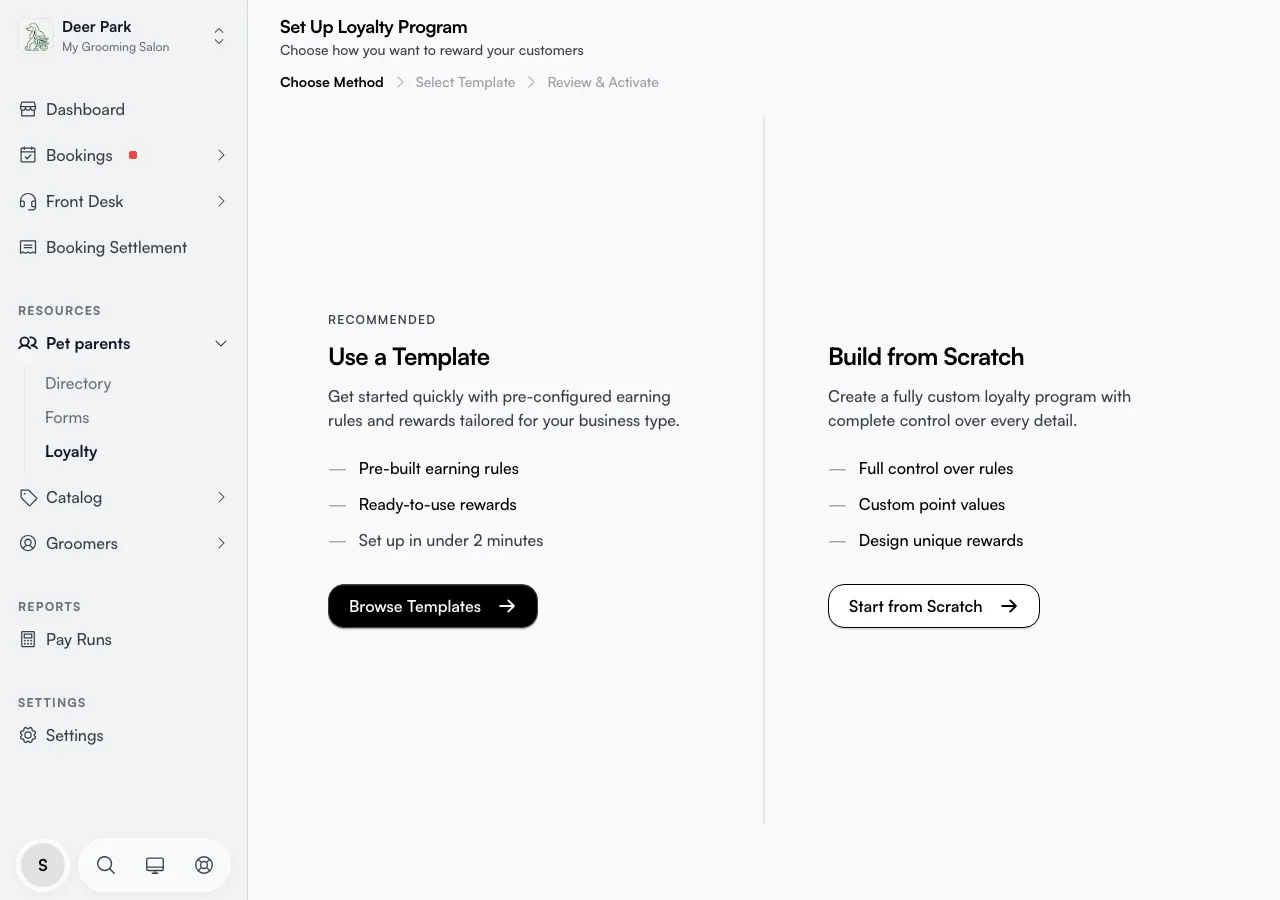
If all you want is "buy 5, get 1 free", skip every other section. On the first screen choose Use a Template → Browse Templates, pick Punch Card, and you get a two-question setup: How many visits for a reward? and What's the reward worth?
A live preview shows exactly what the customer sees — "3 more visits until your reward!" — so you can sanity-check it before activating. Visits can be set from 1 to 20. Behind the scenes this counts completed appointments, not dollars, so it ignores how much each visit is worth.
Start from a points template instead of a blank page
For anything richer than a punch card, a template hands you a working set of earning rules and rewards you can trim. Browse Templates shows three, each listing how many rules and rewards it includes and who it suits:
- Punch Card — one rule, one reward. The classic stamp card.
- Points Program (recommended) — points per dollar, plus bonuses for visits, reviews, and referrals; four rewards from 10% off up to a free add-on.
- Advanced Program — a fuller VIP-style program: four earning rules and six rewards including percentage discounts, dollar discounts, a free premium service, and a $100 credit.
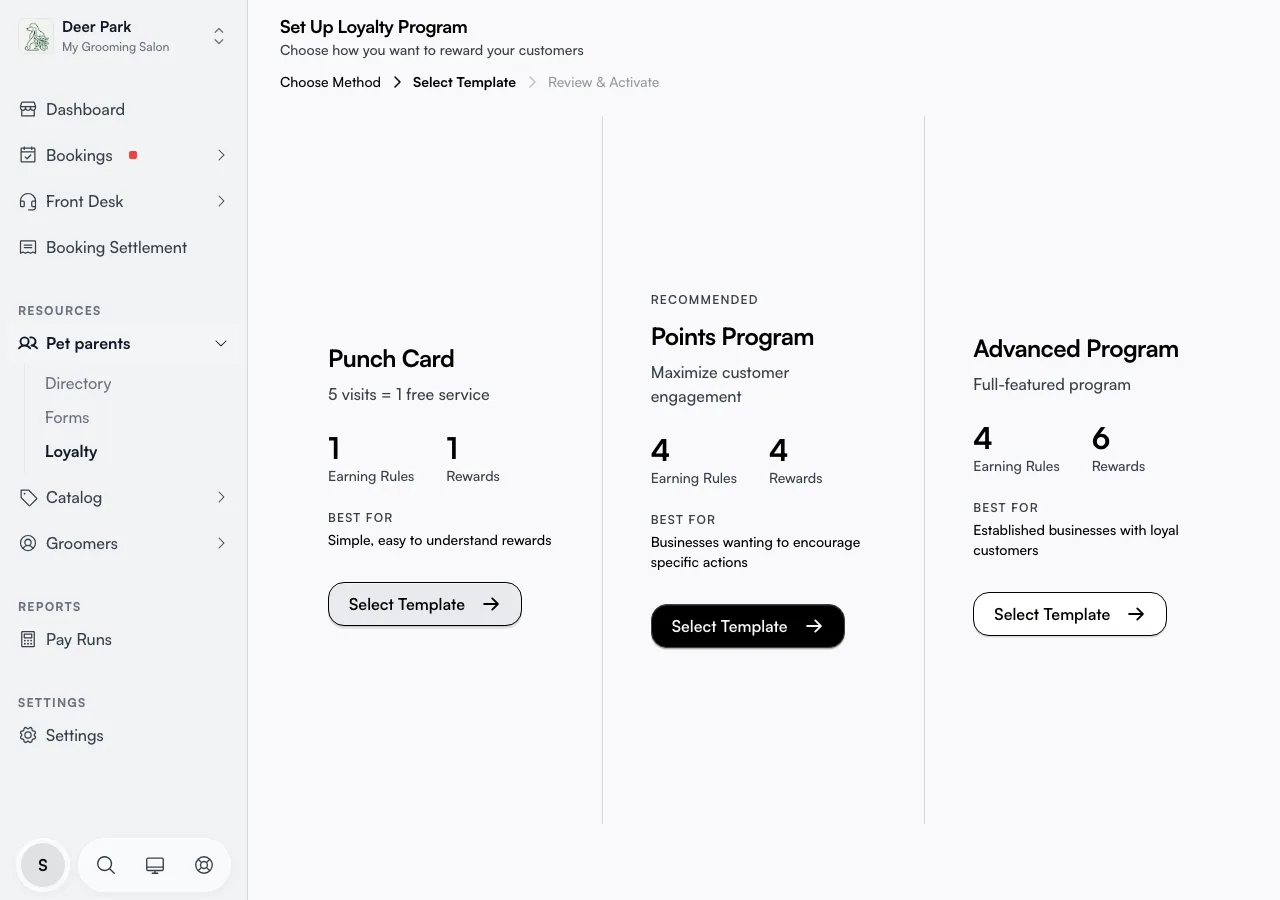
Pick whichever is closest, then edit it on the next screen — nothing is locked in until you activate.
Name the program and what you call a point
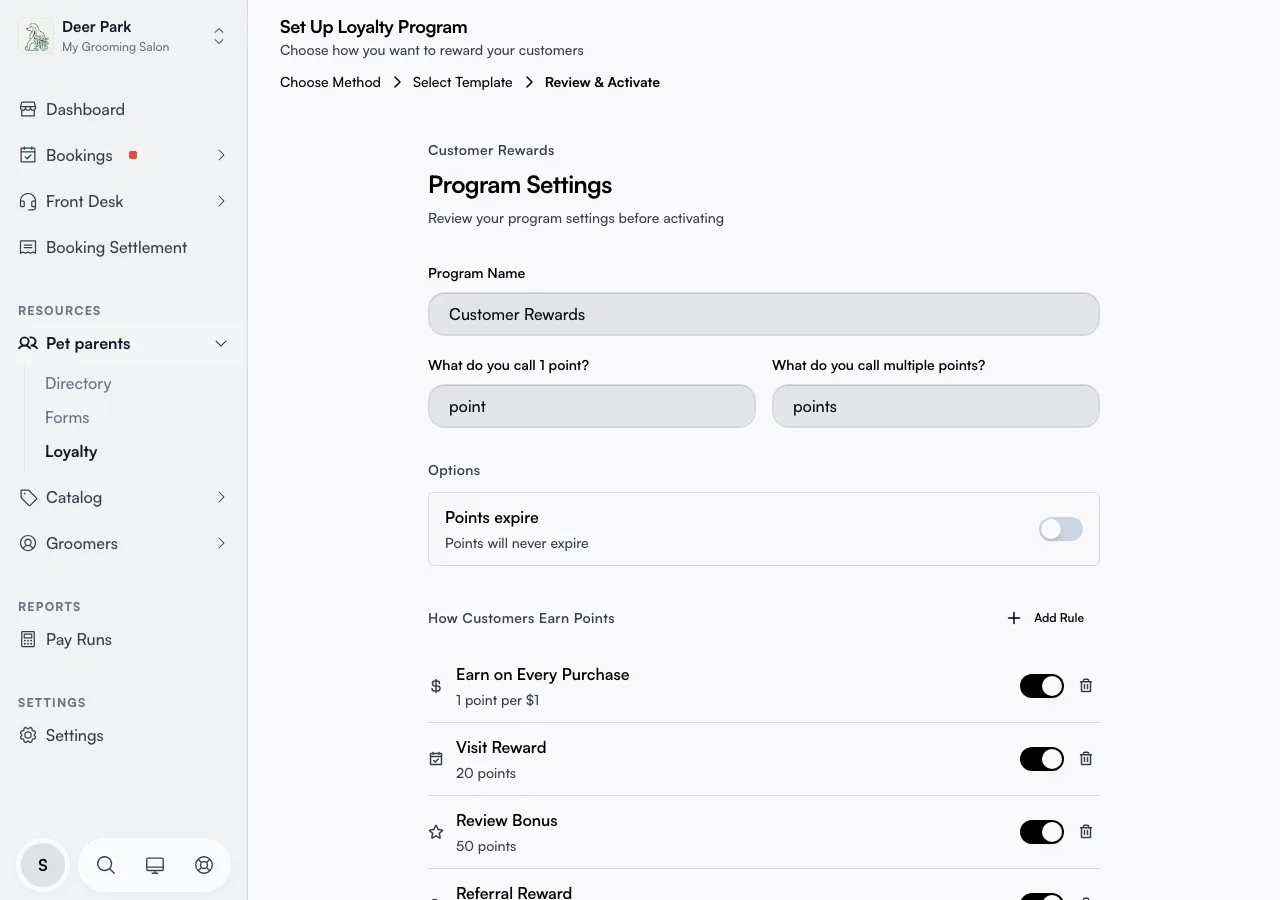
On the review screen, set the Program Name and choose what one point and many points are called — "point/points", "stamp/stamps", "star/stars", whatever fits your brand. Customers see those words everywhere they're shown a balance, so a pet groomer might use "paw/paws" and a cafe "bean/beans".
Choose exactly how customers earn — six triggers, not just spending
This is the part most owners never explore. Click Add next to Earning Rules to open the rule builder, and the Earn points when menu groups every trigger into four categories:
- Spending & Visits — Dollar Spent (points scaled to the bill) and Appointment Completed (a flat amount per visit).
- Engagement — Review Left (reward a customer for leaving a review) and Visit Milestone (a bonus on every Nth visit, e.g. their 5th or 10th).
- Social — Referral Made (the referrer earns once the friend they referred completes their first appointment).
- Profile & Milestones — Birthday (a bonus dropped automatically on the customer's birthday).
The builder shows a live example as you type — "Customer spends $50 → earns 50 points" — so the rule reads back in plain English before you save it.
A few triggers you might expect (rewarding a booking the moment it's made, or completing a profile) are intentionally hidden from this menu because they aren't active yet — only the triggers that actually award points are shown, so you can't build a rule that never fires.
Pick the right calculation method per rule
Each earning rule has a Calculation method, and the options change with the trigger you chose:
- Fixed points each time — the same amount on every trigger (the only option for visits, reviews, referrals, milestones, and birthdays).
- Points per dollar spent — multiply the bill by your rate; available on Dollar Spent.
- Percentage of spend — award a percentage of what they paid as points.
If you switch a rule to a trigger that doesn't support your current method, the method resets to a sensible default automatically — that's why the dropdown sometimes changes on its own.
Set up rewards customers actually want to redeem
Click Add next to Rewards to choose a Reward Type. There are four, each with its own value field and a worked example:
- Dollar off — a flat discount, e.g. 200 points for $10 off.
- Percentage off — e.g. 300 points for 15% off the next visit.
- Free service — points for a complimentary service up to a dollar value.
- Store credit — points converted into spendable credit.
Set the value and the points needed to redeem, and the example line updates live. Picking a reward type pre-fills typical defaults (a $10 discount at 200 points, a 15% discount at 300, a free $50 service at 500) so you have a reasonable starting point to adjust.
Check the Reward Balance gauge before you go live
Scroll past the rules and rewards and you'll find Reward Balance — a gauge that answers the one question that decides whether a program works: is it rewarding enough without giving away too much?
It estimates your return on customer spend as a percentage (the industry sweet spot is 3–7%), marks where you sit between "Not rewarding" and "Too generous", and shows the visits to first reward — how many trips a customer makes before they can redeem anything. It flags real problems in plain language:
- Above ~10% return: "very generous — ensure it fits your profit margins."
- Under ~2% return: "may feel unrewarding — customers might lose interest."
- More than 10 visits to the first reward: "a long wait — consider lowering point costs."
The estimate assumes an $80 average transaction, so treat it as a guide, not gospel — but if the gauge is deep in the red, fix it before activating.
Trim a template down without deleting rules
Every rule and reward in the review list has its own switch. Toggle one off and it stays in view (greyed out) but is not created when you activate — only enabled items go live. This lets you take the Advanced template, switch off the rewards you don't want yet, and keep them visible as a menu to turn on later, instead of rebuilding from scratch. Use the trash icon to remove one entirely.
Decide whether points should expire
Open the Points expire switch under Options. It's off by default, and off means points never lapse. Turn it on and set a window from 1 to 60 months; points then expire on a rolling basis (each batch expires that many months after it was earned, not all at once on a fixed date). Leave it off if you're unsure — expiry is easy to add later but frustrating for customers if you set it too aggressively at launch.
Build entirely from scratch
If no template fits, choose Build from Scratch on the first screen to skip straight to an empty review screen. You add every rule and reward by hand using the same builders. One guardrail: you can't activate a from-scratch program with zero earning rules or zero rewards — you'll be told to add at least one of each, because a program with no way to earn or nothing to redeem does nothing.
Tips
- Walk one real booking through on paper before activating. A generous earn rate plus cheap rewards can imply a far bigger discount than you intended — the balance gauge catches the obvious cases, but your own numbers are the real test.
- Disabled-then-activated is not the same as deleted. A rule you switch off in the review list simply isn't created; to bring it back later you add it fresh on the earning rules page.
- Punch card counts visits, not dollars. If you later want spend-based earning, edit the rules rather than re-running this setup.
- Don't re-run this wizard after launch. It's built for the first program only — use the earning rules, rewards, and settings pages for every change after that.
Related
- Loyalty program — the overview you land on once a program exists.
- Loyalty earning rules — add, edit, and reorder how customers earn.
- Loyalty rewards — manage what points can be redeemed for.
- Loyalty settings — the master switch and program-wide options.