
Loyalty settings
Pause or relaunch your whole rewards program, rename points, make them expire, switch tiers, and repair drifted balances — all from one page.
Updated 3 June 2026
This is the one page that governs your whole rewards program — the word customers see for a point, whether their points lapse, whether they climb status levels, and a master switch that pauses everything without losing a single balance. Get these right at launch and you rarely come back, but a few of them quietly shape every customer email and your booking page, so they're worth understanding.
Everything on this page is one form. You change as many cards as you like, then click Save Changes once at the bottom to apply them all — or Cancel to drop your edits and go back. There's no per-card save here.
Open in app: Loyalty settings
You need a loyalty program created first. If you haven't built one yet, start with setting up loyalty. To reach this page, go to Clients → Loyalty in the left navigation, then click Settings in the top right of the loyalty dashboard.
Pause the entire program without losing data
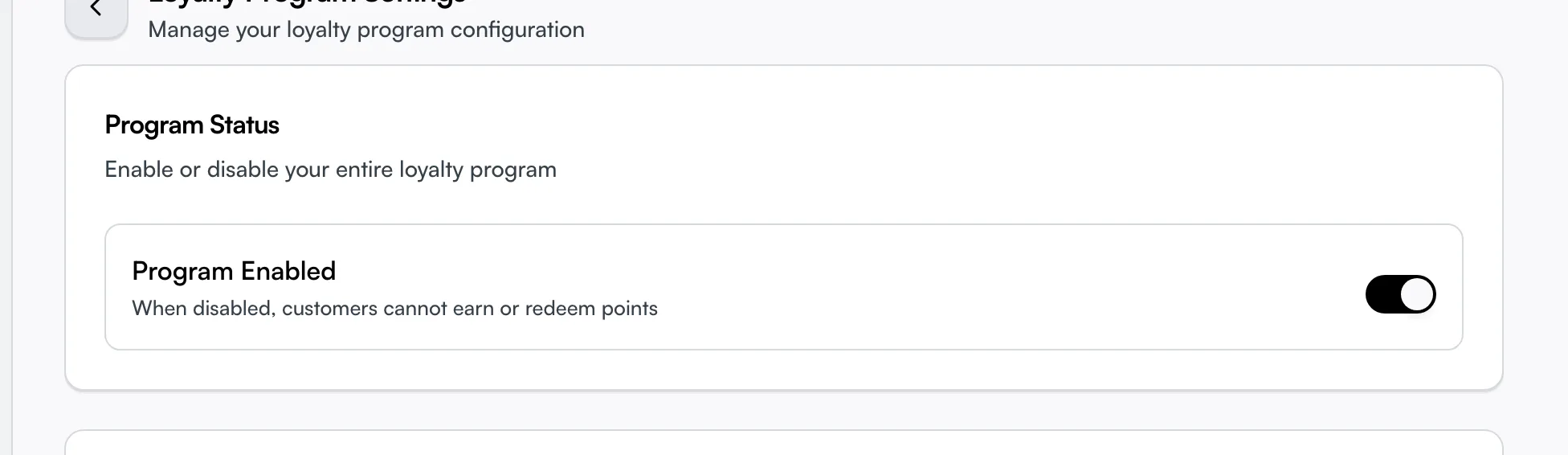
The Program Status card holds the master switch. Turn Program Enabled off and customers can neither earn nor redeem points, no matter what your earning rules or rewards say — it freezes the whole program in one move.
Nothing is deleted. Every balance, transaction, and tier stays exactly as it was, so flipping it back on later picks up right where you left off. Use it to pause for a promotion reset, a rethink, or a quiet season — not as a way to delete the program.
Rename points to match your brand
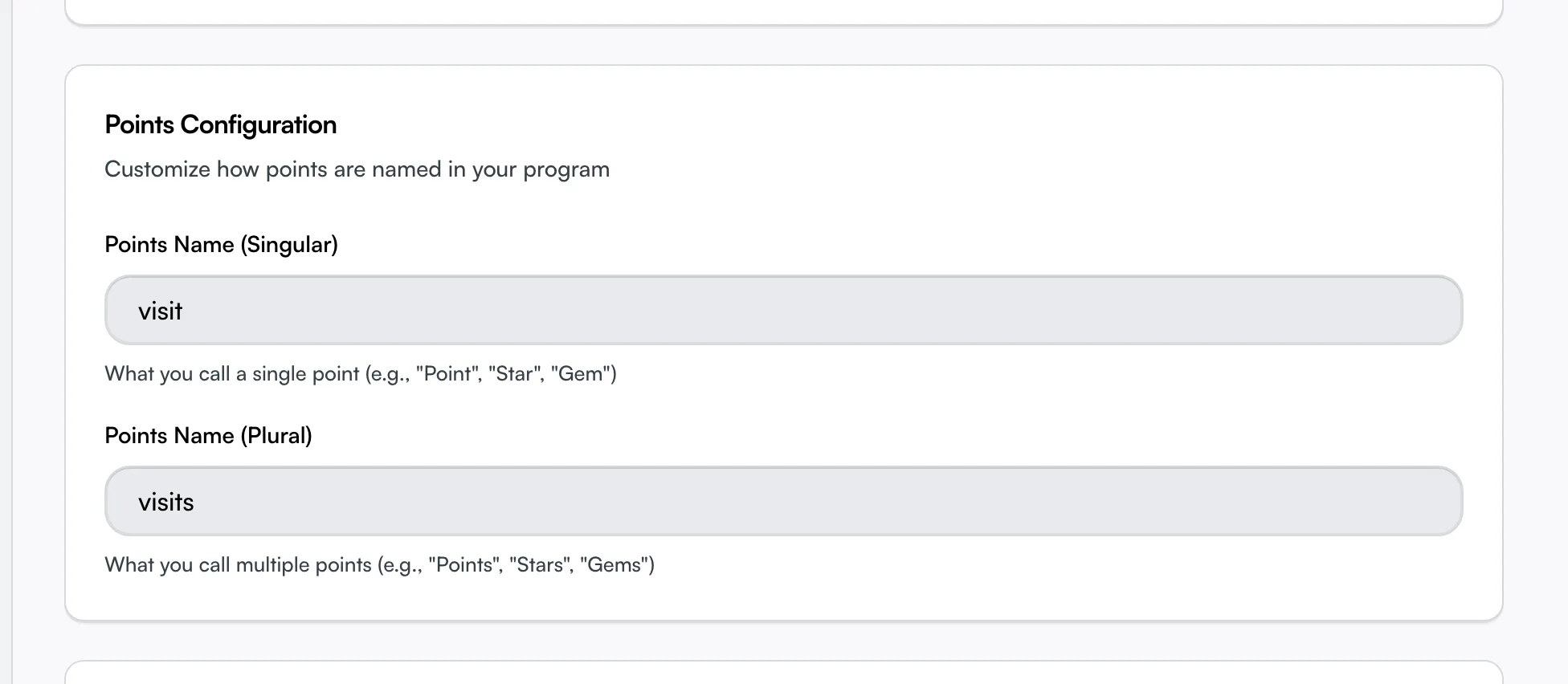
The Points Configuration card decides the word customers read for points everywhere — their emails, your booking page, and their balance. Call them "Points", or make them "Stars", "Gems", "Paws", or anything that fits your business.
You set the singular and the plural separately so the wording always reads naturally — "1 Star", "12 Stars". Type the single-point word in Points Name (Singular) and the many-points word in Points Name (Plural). Each is capped at 20 characters, so keep them short — a long points name wraps awkwardly on a customer's phone.
Make points expire so customers come back
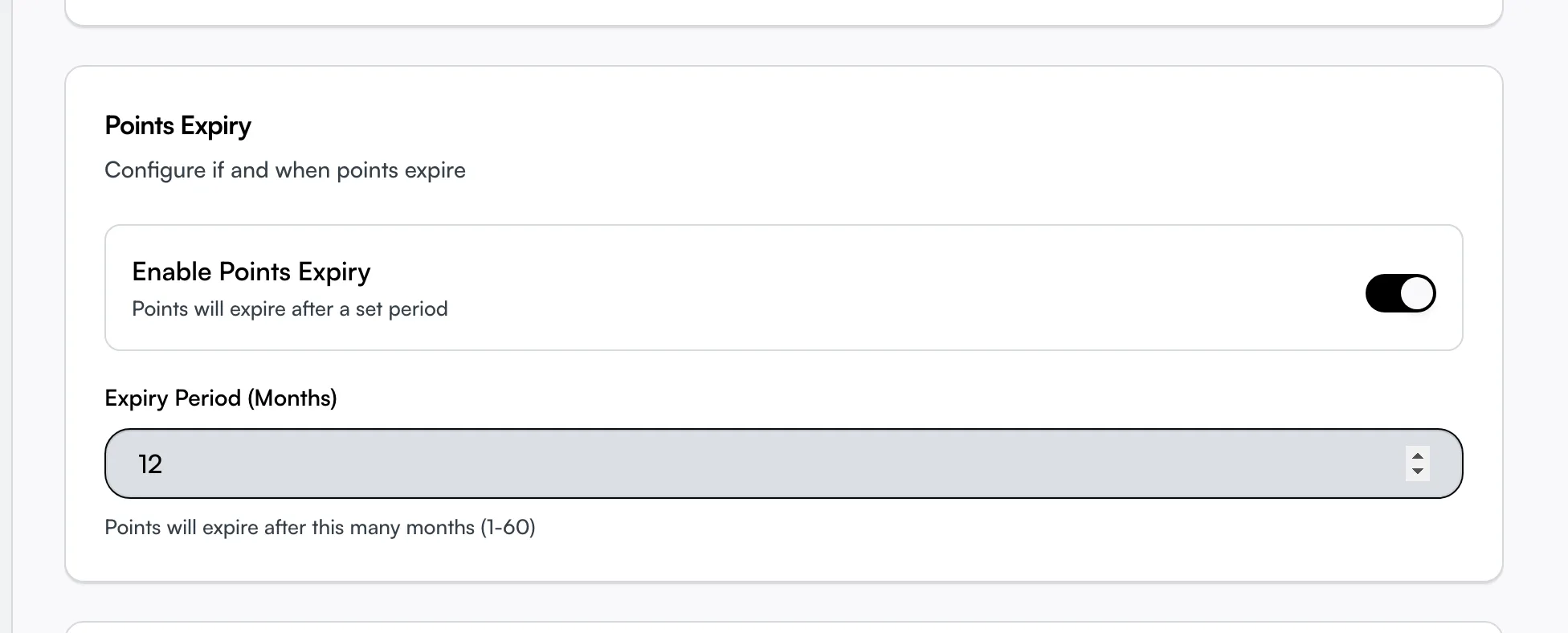
By default points never expire and sit on a balance forever. The Points Expiry card lets you make them lapse after a set time, which gives customers a reason to return and spend before they lose them.
Turn on Enable Points Expiry and an Expiry Period (Months) field appears — enter any number from 1 to 60 (12 is one year, 24 is two). Points expire on a rolling basis, meaning each batch of points lapses that many months after it was earned, not all at once on a fixed date. The setting only looks forward: turning it on doesn't clear balances that already exist, and turning it back off later won't revive points that have already lapsed.
Switch customer tiers on or off
The Tier System card controls whether customers climb status levels — Silver, Gold, and so on — as they earn. Turn Enable Tiers on to run a tiered program, off to keep it flat where everyone is treated the same.
Switching tiers off has a knock-on effect worth knowing: any reward you'd locked to a specific tier becomes available to every customer. Turn tiers back on and those locks return — the configuration isn't lost, just dormant while tiers are off.
Repair balances that look wrong with Sync Points
The Data Synchronization card holds a Sync Points button, and it does something more specific than "rebuild every balance". It scans your paid appointments and awards points only for the ones that never got any — for example bookings that were paid before you switched the program on, or appointments imported from another system.
It's safe to run more than once: appointments that already earned points are skipped, so you can't double-award. Each newly matched appointment earns both its spend points and any visit bonus, and the customer's lifetime spend and visit count update to match. The job runs in the background and can take a few minutes on a large history — you can keep working while it finishes. It only touches programs that are currently enabled, so if nothing changes, check Program Enabled is on first. Treat it as a repair tool for the rare case of drifted or missing balances, not a routine button.
Tips
- Pausing is reversible, deleting isn't. Turning Program Enabled off keeps every balance — it's the safe way to stop the program. Don't reach for it expecting a clean wipe.
- Points names are stuck in customers' minds. They appear in emails and on your booking page, so set them at launch and leave them — renaming later just confuses regulars. Keep each under 20 characters.
- Expiry only ever looks forward. Switching it on won't lapse old points early, and switching it off won't bring lapsed points back.
- Sync Points fills gaps, it doesn't recalculate. It awards points to paid appointments that have none and skips the rest, so running it twice is harmless but won't "fix" a balance that's wrong for another reason.
Related
- Setting up loyalty — create the program these settings govern.
- Loyalty program — the dashboard you reach Settings from.
- Loyalty earning rules — how customers earn the points named here.
- Loyalty rewards — what customers spend points on, including tier-locked rewards. </content>