
Loyalty customers
Settle a points question at the counter, find your most loyal regulars, correct a balance by hand, and read a customer's full earning history.
Updated 19 July 2026
When a regular asks how many points they have, or you need to fix a balance after a goodwill gesture, this is the page you open. It is the membership roster for your loyalty program — everyone who has earned points, with their balance, tier, visits, and last activity side by side — and the place you correct points by hand when a number looks wrong.
You never enrol anyone here. Customers join automatically on their first qualifying paid booking, so the roster fills itself.
Open in app: Loyalty customers
Open the roster
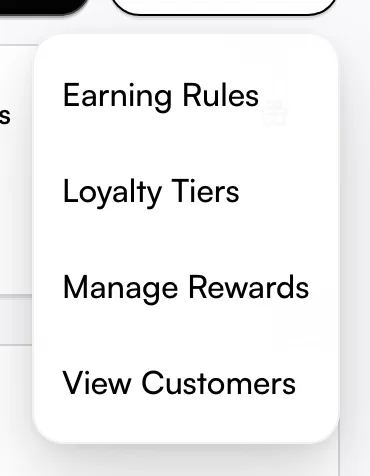
From the left navigation open Loyalty to reach the dashboard, then open the More menu (the three-dot button, top right) and choose View Customers. The table opens with every member, their points, and their tier.
There is a second way in that most owners miss: the Adjust Points button in the dashboard's Quick Actions card drops you straight onto this same roster, ready to pick the customer whose balance you want to fix.
Settle a points question at the counter
Each row shows the numbers a customer might ask about, so you can answer without opening anything:
- Current Points — what they can spend right now.
- Lifetime Points — total ever earned, untouched by redemptions, which can drive tier movement (tiers can be set on points, spend, or visits).
- Tier — their level (such as Bronze, Silver, Gold), shown only if you run tiers.
- Total Visits — completed appointments that counted toward their balance.
- Last Activity — the last time they earned or redeemed.
- Status — Active for an enrolled member, Inactive otherwise.
Find one customer, or rank your best
Type into the Search customers... box to filter the list as you type — useful when the roster runs long. The customer's enrolment date sits under their name, so a name search doubles as a quick way to see how long they have been a member.
To rank the whole list, use Sort by...:
- Points (High to Low) — your biggest current balances first.
- Tier Level — group your top tiers together to spot VIPs.
- Recent Activity — who has come in lately, and who has gone quiet.
Correct a customer's points by hand
When a balance is wrong — a points complaint, a manual sale, a goodwill top-up — open the customer (click the row or its View button) and use Adjust Points in the top right.
In the dialog, switch between the Add Points and Remove Points tabs, then type the amount. The panel shows Current Balance and the resulting New Balance live as you type, so you confirm the exact number before saving — not a guess. The amount cannot be zero, so an empty or zero entry will not save.
A short Reason is required (3 to 100 characters, such as Promotion or Correction) — it becomes the label in the customer's history. There is also an optional Notes field (up to 500 characters) for the longer story behind the change, which a teammate reviewing the account later will thank you for.
Catch a mistake before it goes negative
If Remove Points would push the balance below zero, the New Balance turns red and a warning appears under the form before you confirm. The adjustment is still allowed — sometimes a correction genuinely needs to go negative — but the warning is there so a typo (removing 500 instead of 50) is hard to miss.
Read a customer's full earning history
Opening a customer shows four summary cards — Current Points, Lifetime Points, Total Visits, Current Tier — above a complete Transaction History. Every line is colour-coded by type so you can scan it fast:
- Earned and Refund show in green with a plus sign.
- Redeemed and Expired show in red.
- Adjusted marks the manual changes you made here.
Each line carries a Balance After column, so you can trace exactly how the running total reached today's number — invaluable when a customer disputes a figure.
See how close someone is to the next tier
If you run tiers and the customer is below the top one, a Tier Progress bar appears on their detail page showing the percentage toward their next level. It is the quickest way to answer "how much more until I reach Gold?" at the counter without doing the maths yourself.
Tips
- Not on the roster means no paid visit yet. Enrolment happens on the first qualifying paid booking, not when the account is created — a customer you just added by hand will not appear until they actually pay for a service.
- A balance that looks wrong is usually right. Points are awarded using the earning rules that were live at the moment of payment, so changing a rule afterwards never reprices past visits.
- Always write a real Reason. It is the only label that shows in the history line — "Correction" tells the next person nothing, "Refunded #4821, card declined" tells them everything.
- A tier can drop, not just rise. With Per Year tier requirements, a customer who does not re-qualify falls to a lower tier each January, which is why a regular's tier on this roster can change without you touching it. See Loyalty tiers.
Related
- Loyalty program — the program this roster belongs to.
- Client loyalty status — the single-customer detail view where you adjust points.
- Loyalty earning rules — why a customer has the balance they do.
- Loyalty tiers — how members move up (and drop down) levels.