Packages
Sell prepaid visits of one service for one pet, like 10 grooms and 1 free, priced from your own price list. Set one up, verify pets and track what you owe.
Updated 17 November 2026
A client who comes in every six weeks will often pay for the year upfront if it's worth their while. A package lets them do that: they pay once for a set of visits of one service for one pet, such as ten full grooms and one free, and each groom comes off the package at checkout.
Open in app: Packages
The steps below work in the web app (desktop, mobile web and the iPad app) and the Seglo appointment app. In the appointment app, open More → Services & Products and switch to the Packages tab; tap a package to edit, pause, duplicate or archive it.
Before you start
- Packages come with Seglo Booking at no extra monthly cost. Packages already sold keep working whatever changes on your subscription.
- The service needs a real price. A free service, a "starting from" price or a service with no price yet can't have a package; the setup lists it greyed out with the reason.
- Creating and changing packages needs permission to edit the catalogue. Anyone on your team who can see clients can verify a pet.
Create a package
Open Catalog → Packages and choose Create package. Each screen asks one thing, with a preview of what clients pay on the right.
- Which service is this for? Pick one service. A package covers that service only, so a client who alternates two services needs two packages.
- How many visits? Set Clients pay for (2 to 100) and Free visits (1 to 100). There's no price to type: the preview works it out for every size from the service's own prices.
- How long can clients use it? 12, 24 or 36 months from the day they buy, or No expiry. 24 months is chosen for you.
- Who can buy it online? See the next section.
- How can clients pay? Online, At the shop, or both. Online needs online payments set up first; until then it's greyed out with a Set up payments link. Packages sold in the shop only skip this screen.
- Name your package. The name is filled in for you, such as "Full Groom 10 Pack". Add a description if you like. With more than one location you can tick where it's sold; tick none to sell it everywhere.
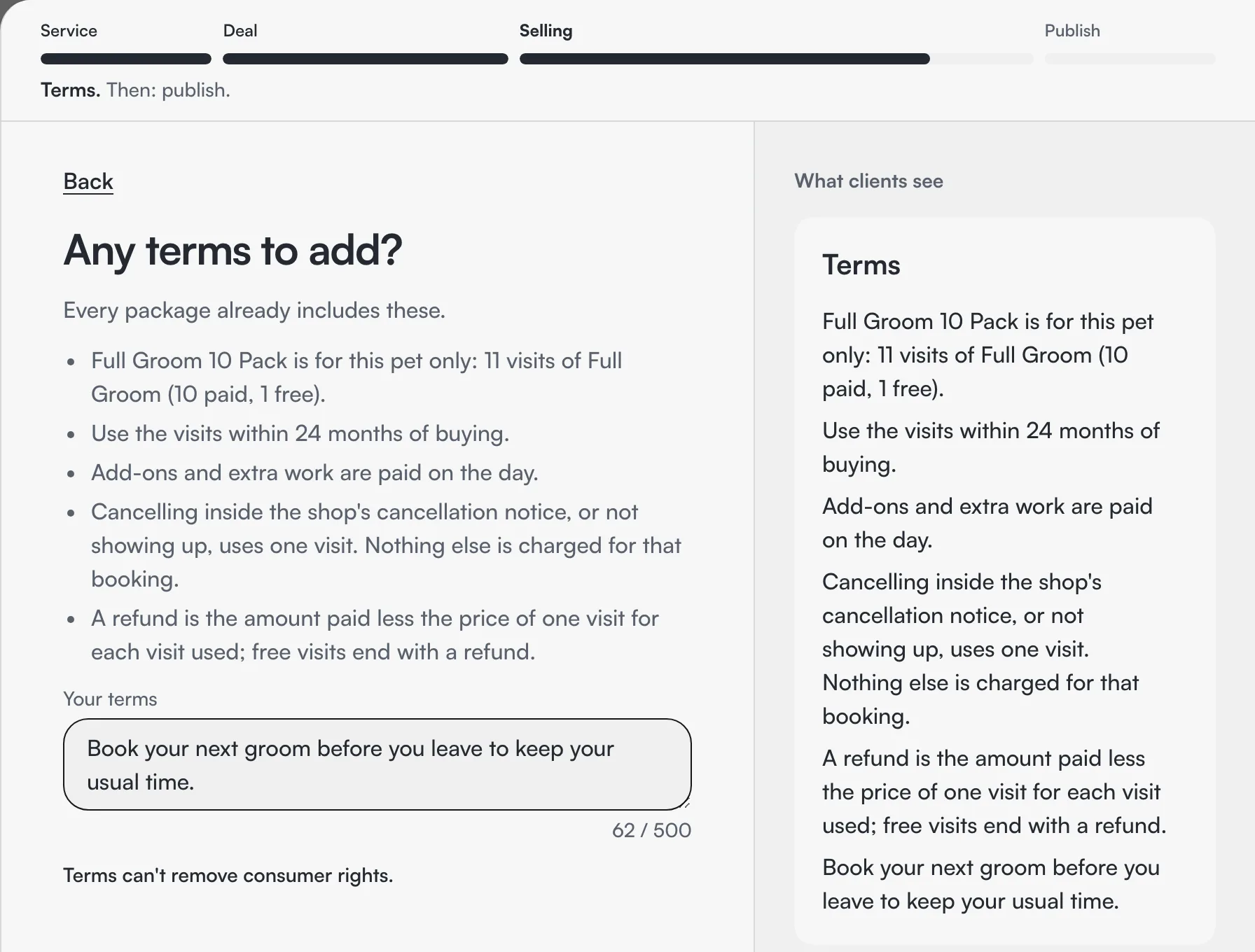
- Any terms to add? The screen shows the terms every package already carries, word for word as clients read them: one pet and one service, the number of visits, the expiry, extras paid on the day, what a late cancellation or no-show uses, and how refunds work. Add up to 500 characters of your own underneath.
- Ready to sell? Choose Publish or Keep hidden, then Finish.
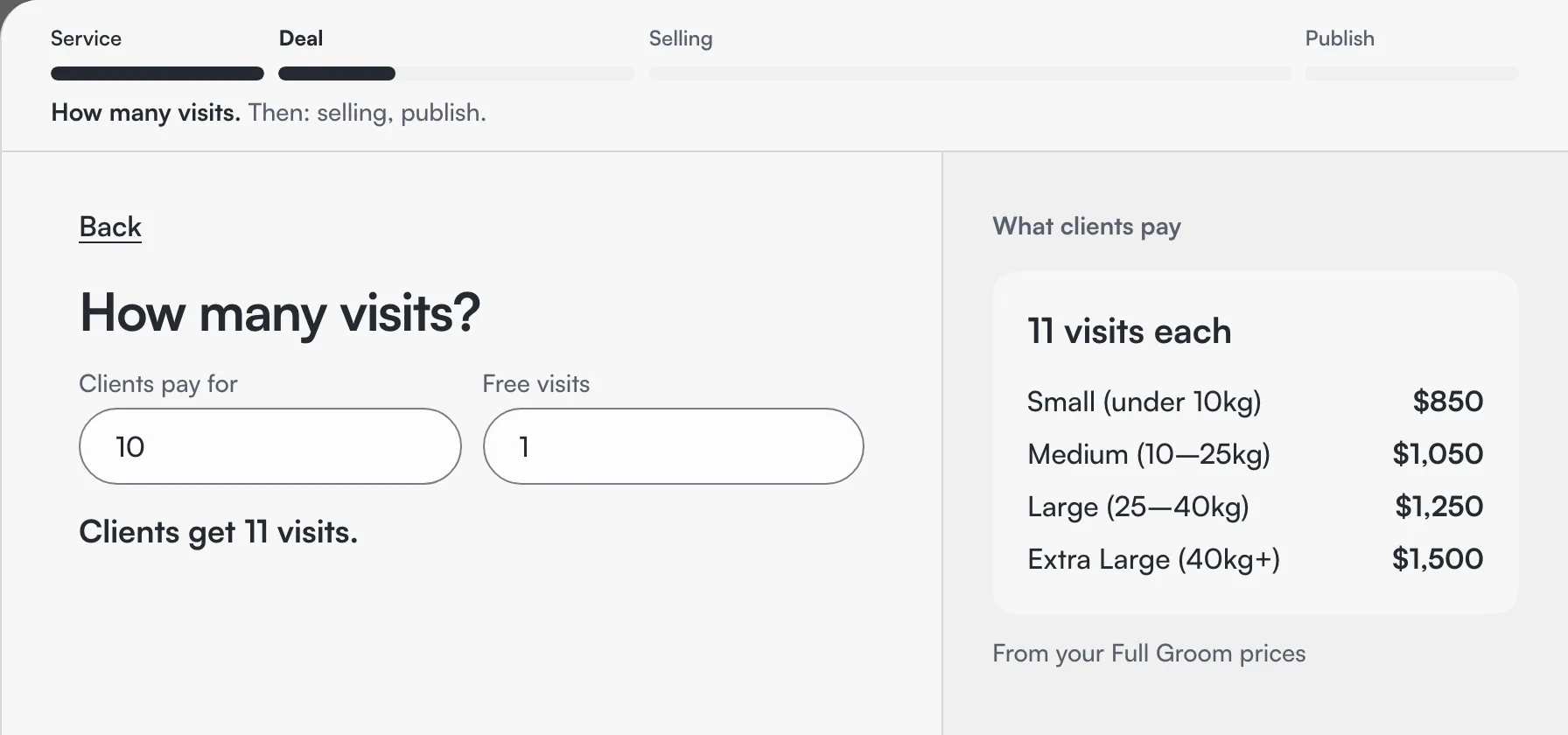
With a Full Groom priced at $85, $105, $125 and $150 by size, "pay for 10, get 1 free" sells for $850 to $1,500, eleven visits each. A client whose dog is Large pays $1,250.
Your very first package adds one last screen if pets have already finished a visit with you: Verify pets you've seen? Choosing Verify (for example Verify 12 pets) uses each pet's answers from its last visit, so their owners can buy straight away. Later leaves you to verify pets one at a time from the client record.
Decide who can buy online
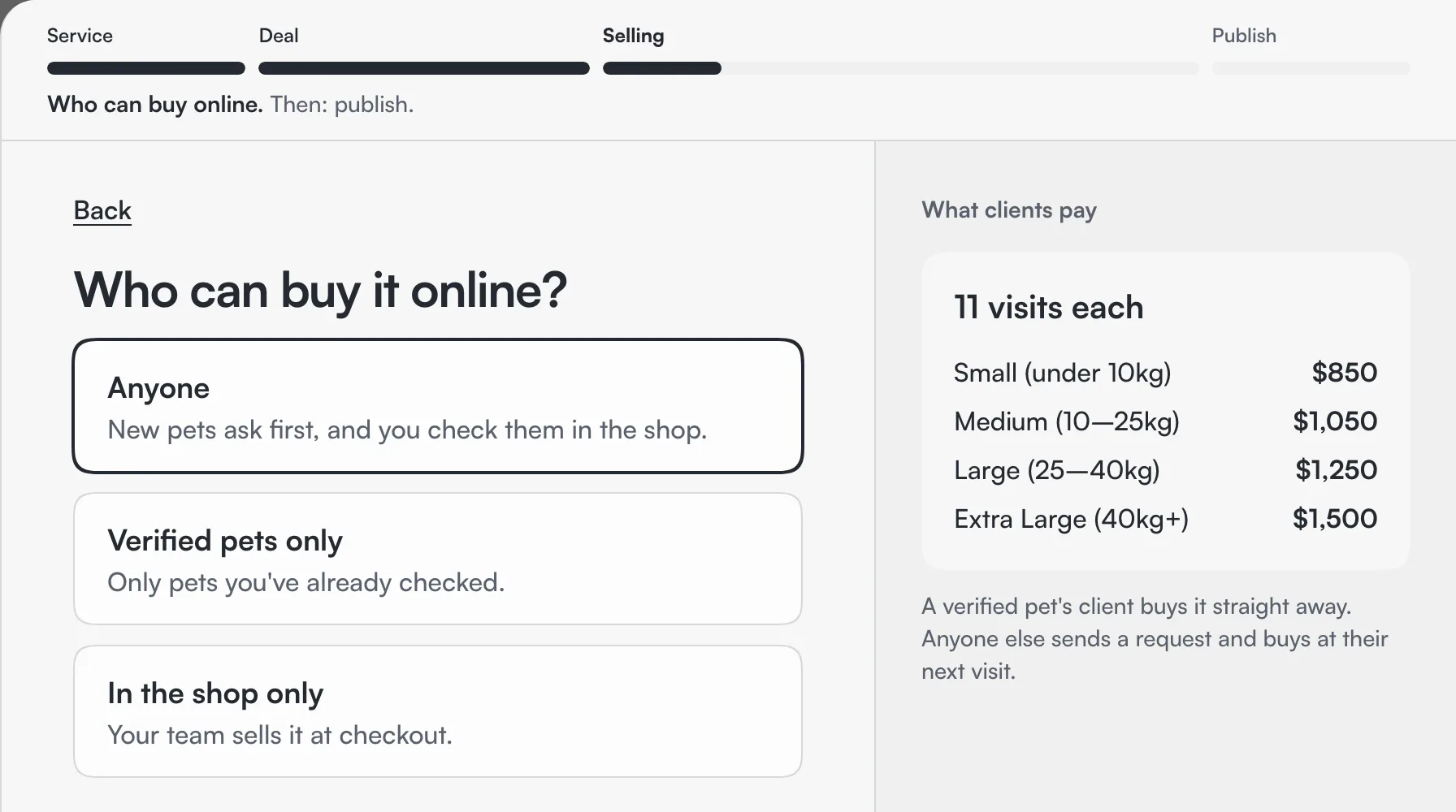
- Anyone. A pet you've verified can buy straight away. Any other pet sends a request with its booking, and you confirm its size and take payment when it comes in.
- Verified pets only. Only pets you've already checked can buy online. Everyone else buys it at the counter.
- In the shop only. Clients don't see it online. Your team sells it at checkout.
Whichever you choose, your team can sell a published package at checkout. A hidden package isn't offered anywhere, including checkout.
Verify a pet
Verified means someone on your team has seen the pet and its details are right, so a package bought online is priced for the right size. Finishing a groom doesn't verify a pet on its own: whoever did the checkout may not have checked the size the client picked.
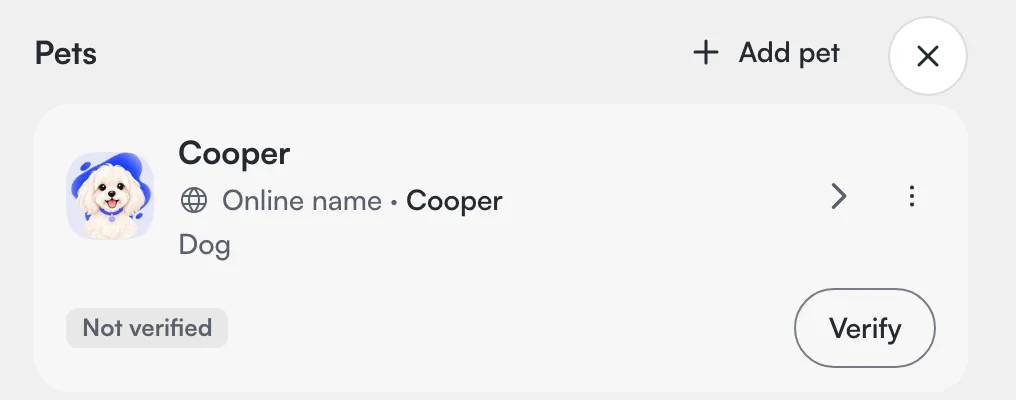
- Open the client and find the pet. A pet you haven't checked shows Not verified and a Verify button.
- Choose Verify, then Verify again in Verify {pet}? to confirm.
- The pet now shows Verified, with who verified it and when.
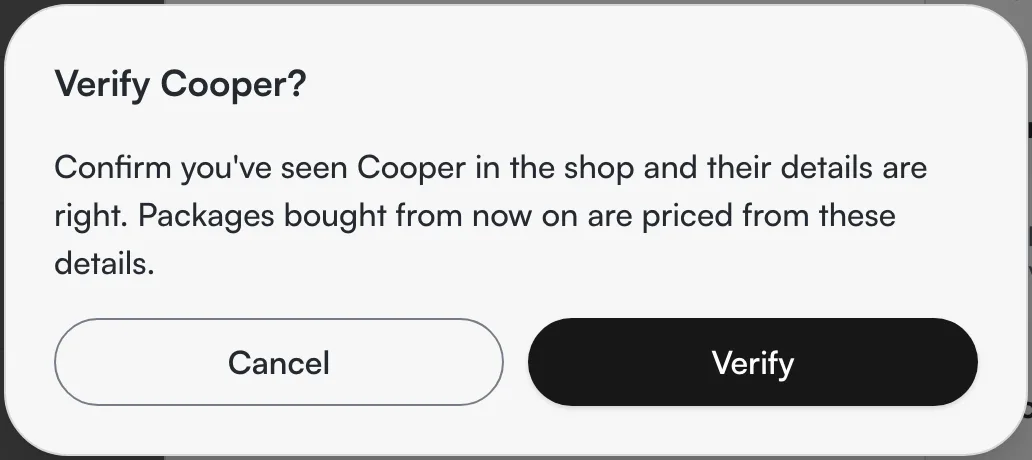
Confirming a client's package request at checkout, or selling a package at the counter, verifies the pet as well, whatever the service. See Packages at checkout.
A verified pet's package price comes from what you checked. For a service priced by size options, that's the option the pet last had done with you. For a service priced by the pet's answers, it's the answers saved when you verified it. If the client later changes an answer, the pet's card shows both, such as Verified Large · Now Medium. To update it, choose Undo verify, then Verify. Packages already bought keep their price.
Undo verify takes the badge away. The pet then needs checking in the shop again before its owner can buy a package online.
Pause, change or retire a package
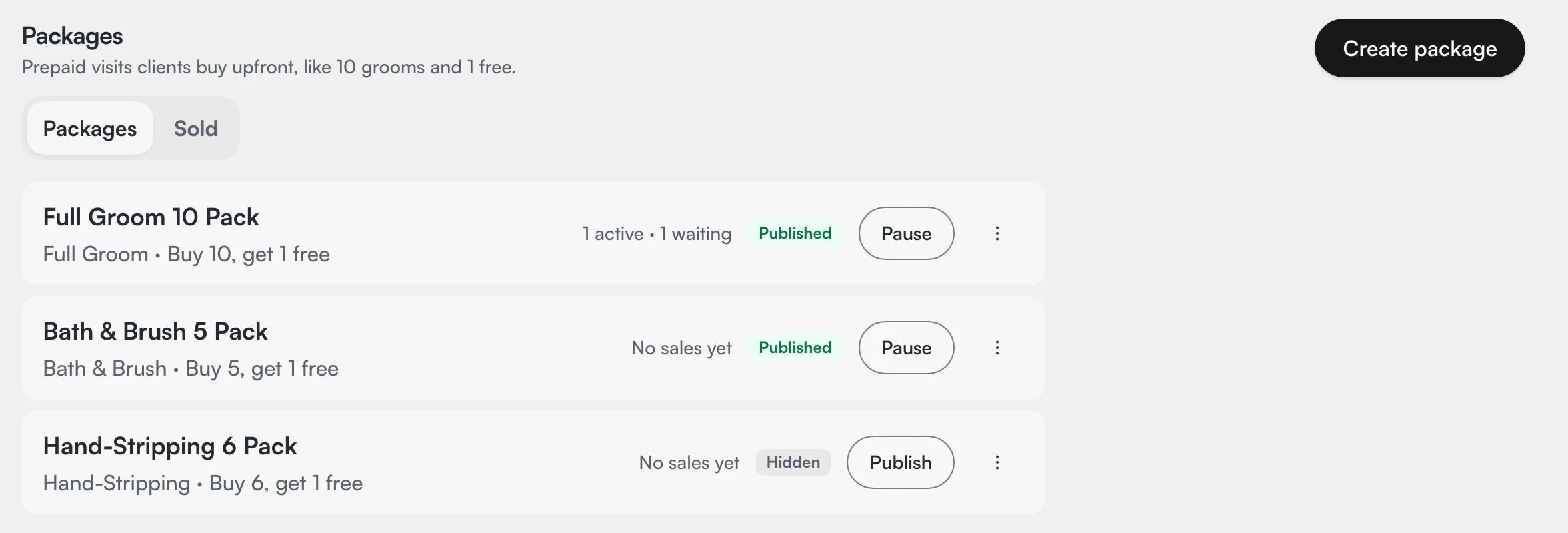
Each row shows the service and the deal, how many sold packages are active and how many are waiting, and whether it's Published or Hidden.
- Pause takes it off sale for new buyers. Publish puts it back.
- Open a package to edit it. Changes apply to packages sold from then on. Once one has sold, its service and its visit numbers are locked: "Sold packages keep their terms. Create a new package to change this."
- Duplicate (in the ⋮ menu) starts a new package from a copy. Use it to change the deal, then pause the old one.
- Archive (in the ⋮ menu) stops sales for good. Packages already sold keep working.
See what you've sold and what you still owe
Open Packages → Sold.
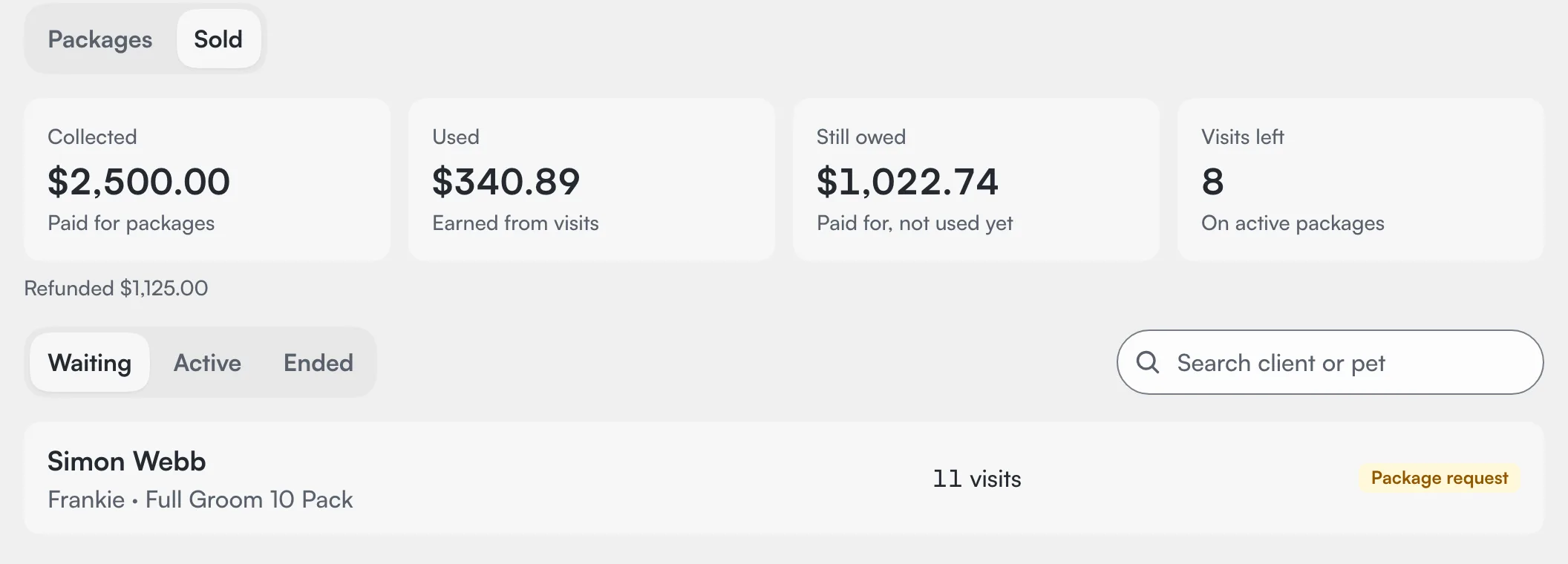
- Collected: paid for packages.
- Used: earned from visits so far. Each visit earns its share of what the client paid, so $1,250 for 11 visits earns $113.63 a visit.
- Still owed: paid for, not used yet. That's grooming you still owe your clients.
- Visits left: on active packages.
Refunds show underneath. Waiting lists requests and unpaid sales, Active the packages in use, and Ended those used up, expired, cancelled or refunded. Search by client or pet.
Choose how package visits pay commission (web app)
By default a groom paid with a package pays commission as if it were paid in full. To change that, open Settings → Pay rules (under Paying your team) and choose Package visits.
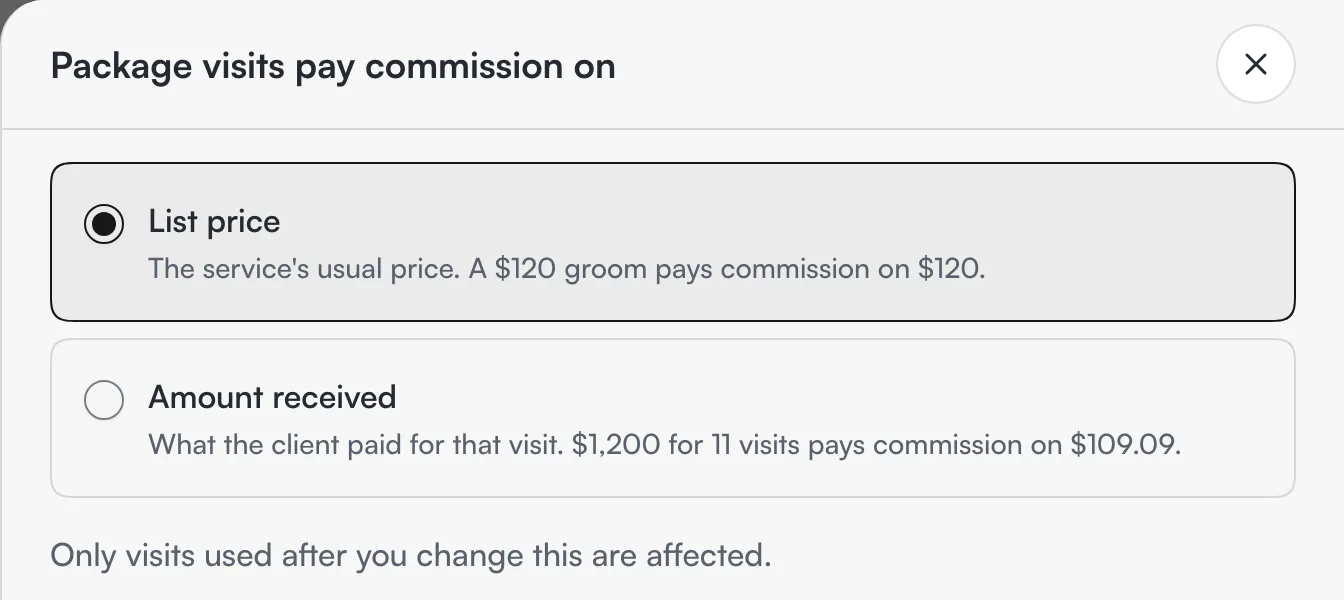
- List price: the service's usual price. A $120 groom pays commission on $120.
- Amount received: what the client paid for that visit. A package of 11 visits for $1,200 pays commission on $109.09.
Only visits used after you change it are affected. Add-ons on the same visit pay commission as usual. Changing this needs permission to change pay settings.
Tips
- A service you want is greyed out. It's free, priced "from", or has no price yet. Give it a set price first, as in Service variants and pricing.
- Clients email about their package. Package emails (requested, bought, a visit used, expiring soon, refunded) are a row on the Customers tab of Notification settings.
- Packages aren't bundles. A bundle is a price for several services in one booking. A package is visits bought now and used over months.
Related
- Packages at checkout: confirm requests, sell, use a visit, undo and refund.
- Pet packages: what clients see when they buy and use a package.
- Service variants and pricing: the prices a package is worked out from.
- Attribute-based pricing: services priced by the pet's answers.
- Gift cards: prepaid value instead of prepaid visits.
Related