Packages at checkout
Confirm a client's package request, sell a package at the counter, use a visit, and undo, return, extend or refund a package from the client record.
Updated 10 November 2026
Most packages are sold, confirmed and used at the counter, with the client in front of you. Everything happens on the Packages card at the top of the booking's payment screen, so you never leave checkout to deal with one.
Open in app: Calendar
These steps are the same in the web app (desktop, mobile web and the iPad app) and the Seglo appointment app. To set packages up, see Packages.
Before you start
- Selling and using packages needs permission to take payments. Refunds also need the Refund permission.
- The Packages card appears only when it has something to offer: a request waiting, a package this pet can use, or a published package for a service on the booking.
Open the Packages card
Open the booking, choose Mark ready when the visit is done, then choose Take payment. Take payment appears only after Mark ready. If the main button shows the next step instead, such as Mark collected, Take payment is in the ⋮ (More actions) menu. The Packages card sits above the bill.
Confirm a package request
When a client asks for a package with their booking, the card shows Package request with Waiting, the pet and the price.
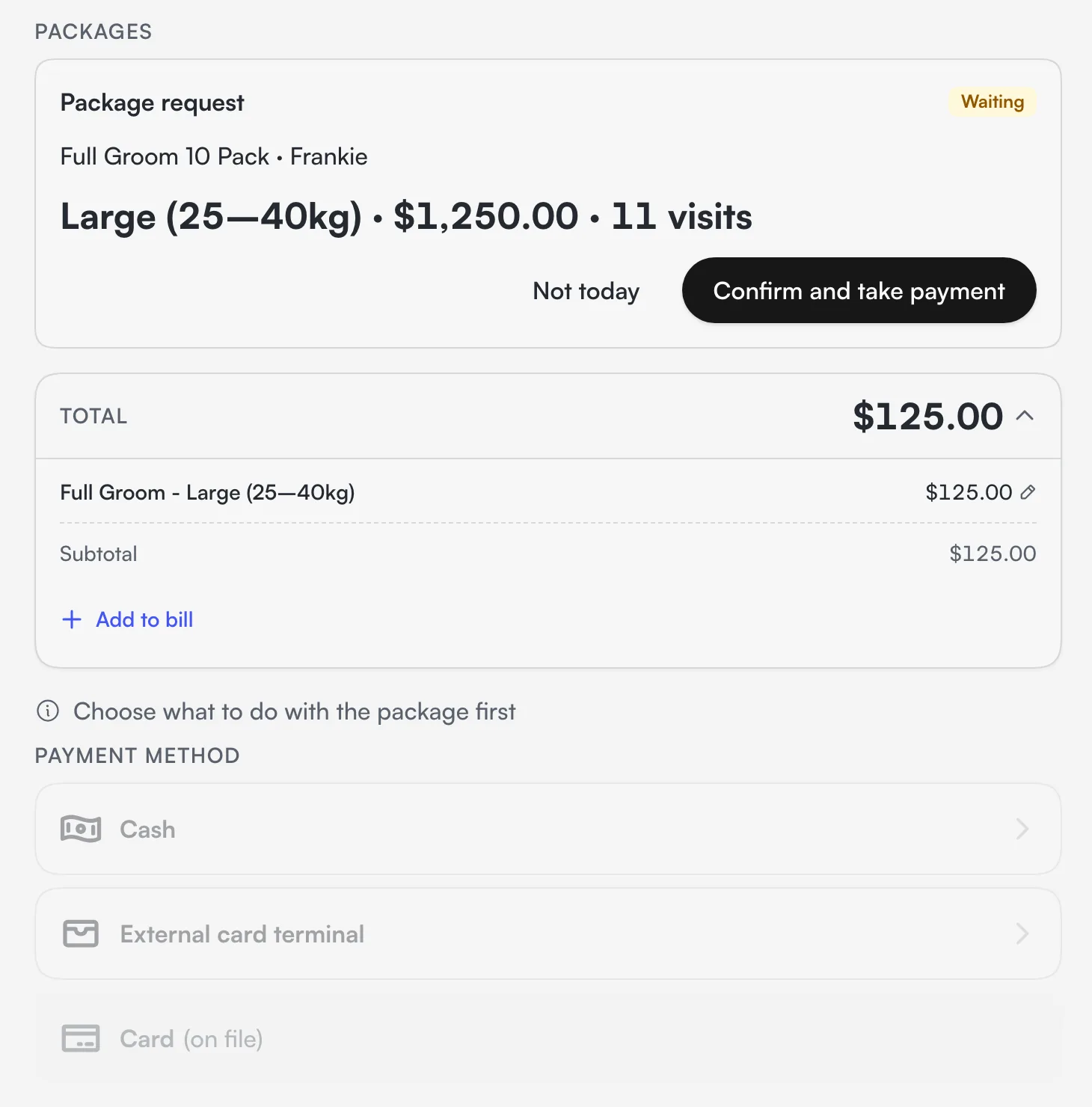
- Check the pet's size. If the price depends on the pet's answers, a Size list shows what the client chose; change it if the dog in front of you is different, and the price updates.
- Choose Confirm and take payment.
- Pick how they pay: Cash, External card terminal, or, where available, the card on file, your shop's card terminal or Tap to Pay on the phone.
- Tick Client agreed to the package, its price and terms, then choose Take with the amount.
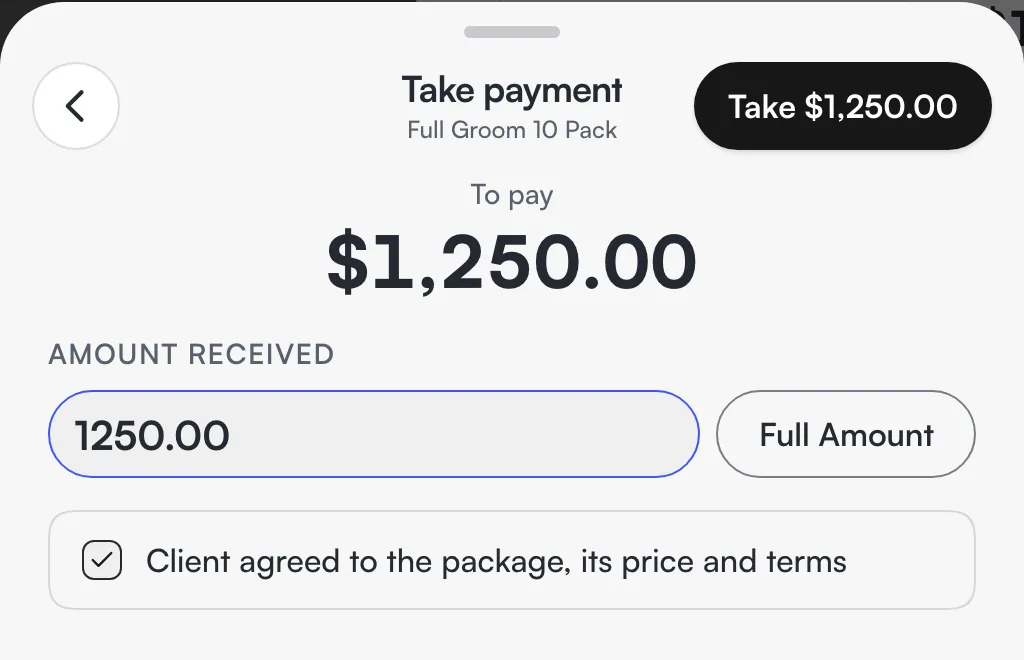
The package is active once the payment goes through. The pet is verified too, whatever the service: with the size you confirmed when the price depends on the pet's answers. Today's groom is the first visit: it goes on the bill as a Package visit, and if nothing else is owed you finish with Complete with package.
You can't take payment for the visit until you've decided the request: the screen says Choose what to do with the package first. Tell the person paying the confirmed price before they agree; the price they saw when booking is only a From price. If they paid a deposit for this booking, it counts towards the package.
Not today cancels the request. Confirm with Cancel package and the visit is paid at its usual price. A request nobody decides is cancelled 7 days after its visit.
Sell a package at the counter
For a pet with no package, the card lists the published packages for a service on the booking, with the price for this pet and the number of visits.
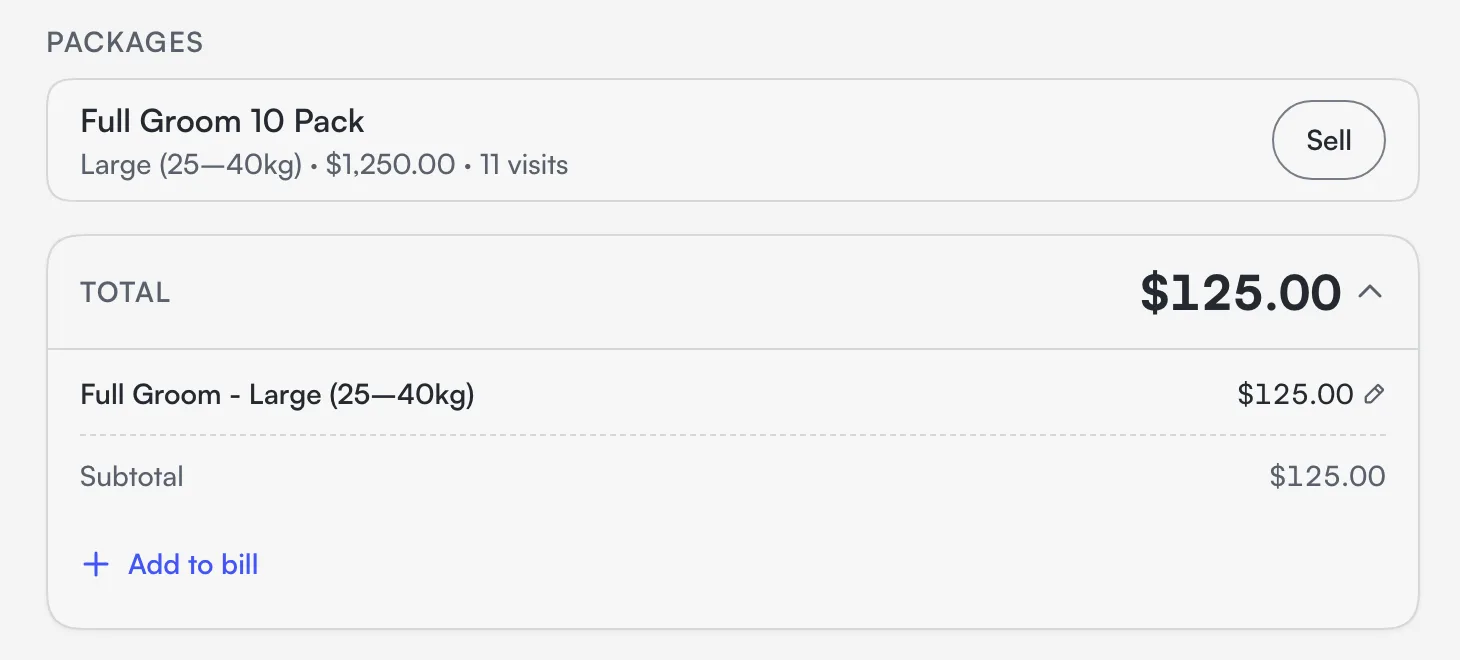
Choose Sell, then take the payment the same way as a request. Selling verifies the pet, as confirming a request does. If the price depends on answers you haven't checked yet, the row says the price comes after you confirm the size.
Use a visit
When the pet has a package for a service on the booking, the card shows the package and how many visits are left, with Use.
- Choose Use. The bill gains a Package visit line that takes off the service's price.
- If nothing else is owed, choose Complete with package.
- If there are extras, such as an add-on or dematting, take payment for what's left as usual.
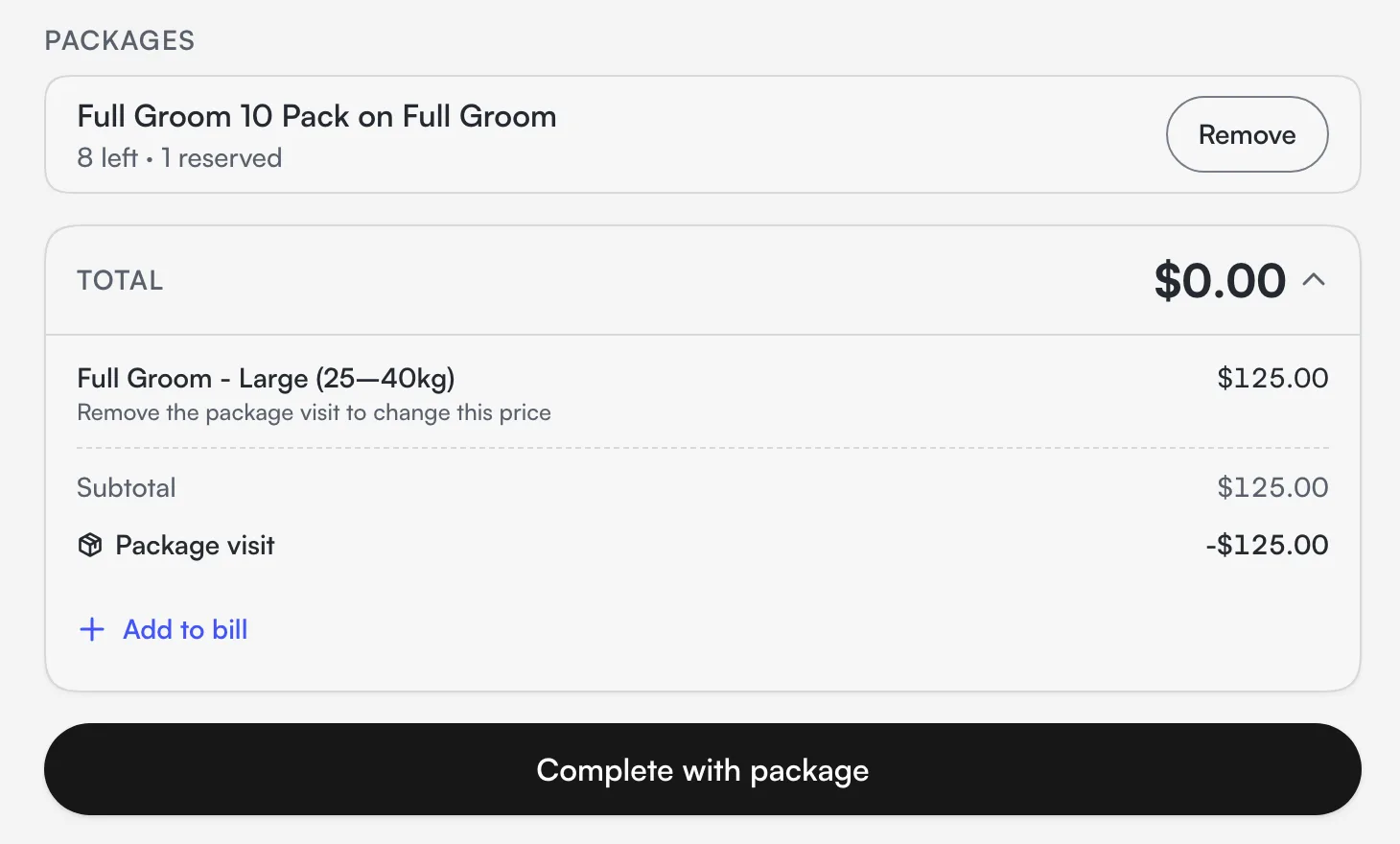
A visit stays reserved until checkout, and is only counted as used when you complete checkout. Remove puts it back on the package.
If the client chose Package when they booked online, the visit is already on the bill. Bookings you make, phone bookings and bookings from your AI receptionist never use a package by themselves: choose Use at checkout.
A few things can stop Use:
- The booked option is different from the package's, such as a package for Large on a Medium groom. The card asks Use it anyway? and you decide.
- The booking has a discount. Remove it first: a visit paid with a package can't also be discounted.
- The service on the booking costs less than a package visit.
- The package has expired, expires before this visit, or has no visits left. Extend an expired package first.
Undo a visit used by mistake
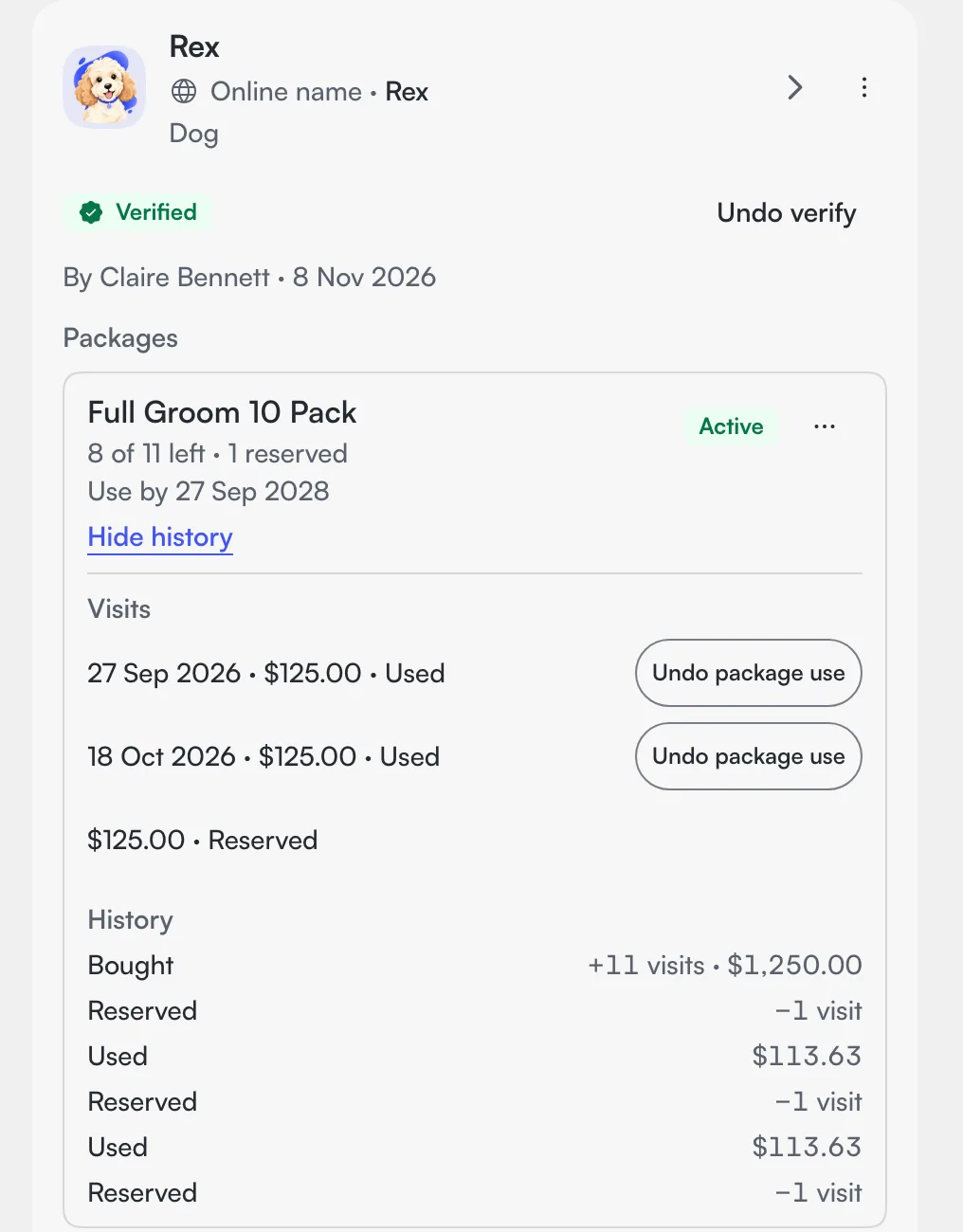
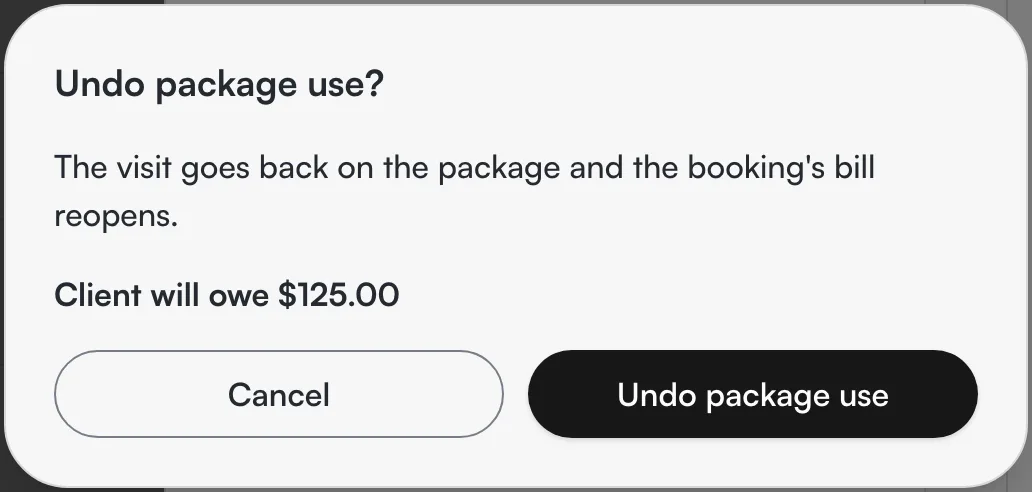
Open the client, find the pet's package and choose Show history. Next to each used visit, Undo package use puts the visit back on the package and reopens that booking's bill. The dialog tells you what the client will then owe.
Give back a visit after a no-show or late cancellation
A booking with a package visit has one rule. If the client cancels inside the notice your cancellation policy asks for, or doesn't turn up, that visit is used and nothing else is charged for the booking: no cancellation or no-show fee, and no deposit kept. Any other cancellation gives the visit back. If your policy asks for no notice, a cancellation before the visit always gives it back.
The history shows a used visit as Used: no-show. To give it back, choose Return visit next to it; the booking's bill doesn't change. If the package has expired, extend it first.
This holds when you cancel for the client or mark the no-show yourself: to let the client off, choose Return visit afterwards. When your shop cancels a booking, its visit always goes back, and a package that had already expired gets 30 more days.
Extend a package
An expired package shows Expired with the date at checkout, alongside Extend. You can also extend from the ⋯ menu on the package in the client record. Pick a Use until date after the current expiry.
Refund a package
From the client record, open the package's ⋯ menu and choose Refund.
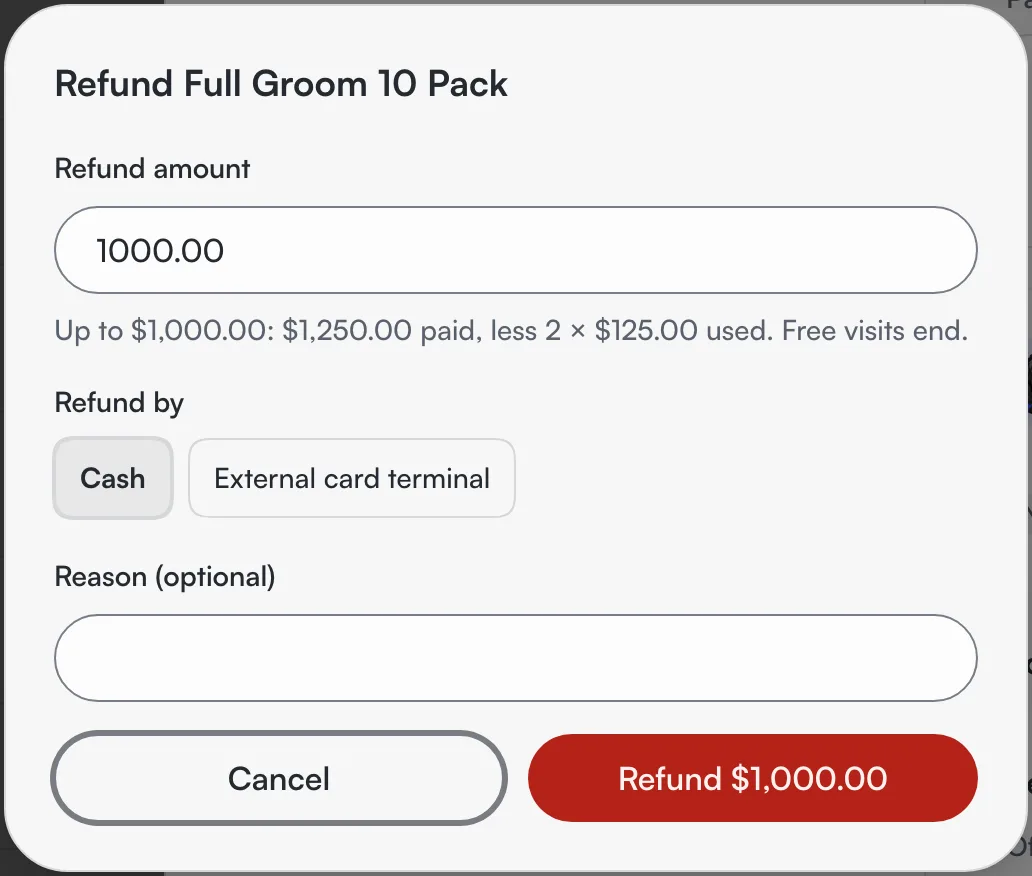
The amount starts at what the client paid, less the full price of each visit used. Free visits end. You can lower it but not raise it. Money paid online or with the card on file goes back to that card. Anything else is refunded by Cash or External card terminal. Add a reason if you like. After a refund, the package's visits can't change.
When a payment is still being checked
If a card payment for a package hasn't come back yet, the card says Checking payment… and nothing else can be taken until it settles. Choose Check payment. For a payment on your card terminal, Seglo may point you to the card terminal report to match it.
Tips
- The card is missing. The package may be hidden, sold at another location, or for a service that isn't on this booking.
- The package is for the wrong service. A package covers one service. Sell a second package for the other one.
- A client is moving away. Refund the package: visits held on future bookings come off it and the free visits end. Cancel any bookings that won't go ahead separately.
Related
- Packages: set up packages, verify pets and see what you've sold.
- Pet packages: what clients see online.
- Payments overview: the rest of checkout.
- Tap to Pay: taking cards on your phone.
- Booking policies: late cancellation and no-show rules.
Related