Auto Offer
Hold each pet's next groom at its usual time, text the client to accept it, and see every offer you sent. Nothing is booked until they accept.
Updated 5 November 2026
The dog goes home and nobody books the next groom. Auto Offer fixes that without booking anything behind the client's back: before each pet's next groom, Seglo finds the time that best matches the pet's usual visit, holds it, and texts the client. They tap Accept and they're booked. If they don't answer, the time is released and the pet comes back to you in Needs you.
Open in app: Grooming Care · Grooming Care settings
Auto Book and Auto Reminder are now Auto Offer
Auto Offer replaces both. Auto Book used to book the next groom without asking the client. Auto Reminder texted suggested times but held nothing, so a time could be gone by the time the client replied. Auto Offer does what each did well: it holds a real time, and the client agrees to it before it is booked.
What changed for you:
- Pets that were on Auto Book are now on Auto Offer, with the same pets, service and care cycle. Appointments Auto Book already made are still booked. From now on, Seglo offers the next groom instead of booking it.
- Nothing to set up for Auto Reminder. Turn on Auto Offer for the pets you used to remind.
- The Auto Book tab and the Auto Book visits in Requests are gone. Pets whose next groom isn't arranged are in Needs you on Grooming Care.
- The customer messages changed. Auto Reminder and Auto Reminder link are replaced by Auto Offer and Auto Offer link. Clients no longer get an "Auto Book booked your groom" message: they get the offer, then your usual booking confirmation once they accept.
- Clients can't turn it on themselves any more. They can see their offers and stop them. Only you turn it on.
Before you start
- The pet needs a care cycle and at least one completed groom at your shop. The suggested next groom is the last groom plus the care cycle. See Grooming Care.
- The client needs a mobile number. You can type one when you turn Auto Offer on.
- Your shop must be able to text: either the location has its own number, or Text messages is on in Notification settings.
- Auto Offer is part of Grooming Care, included from the Starter plan. Turning it on or off needs permission to edit both clients and bookings.
Turn on Auto Offer (web app and Seglo appointment app)
The easiest moment is at checkout, with the client standing there.
- Take payment for the groom as usual. Under the payment, the next groom section shows each pet with an Auto Offer switch, and Book next for booking the next visit yourself.
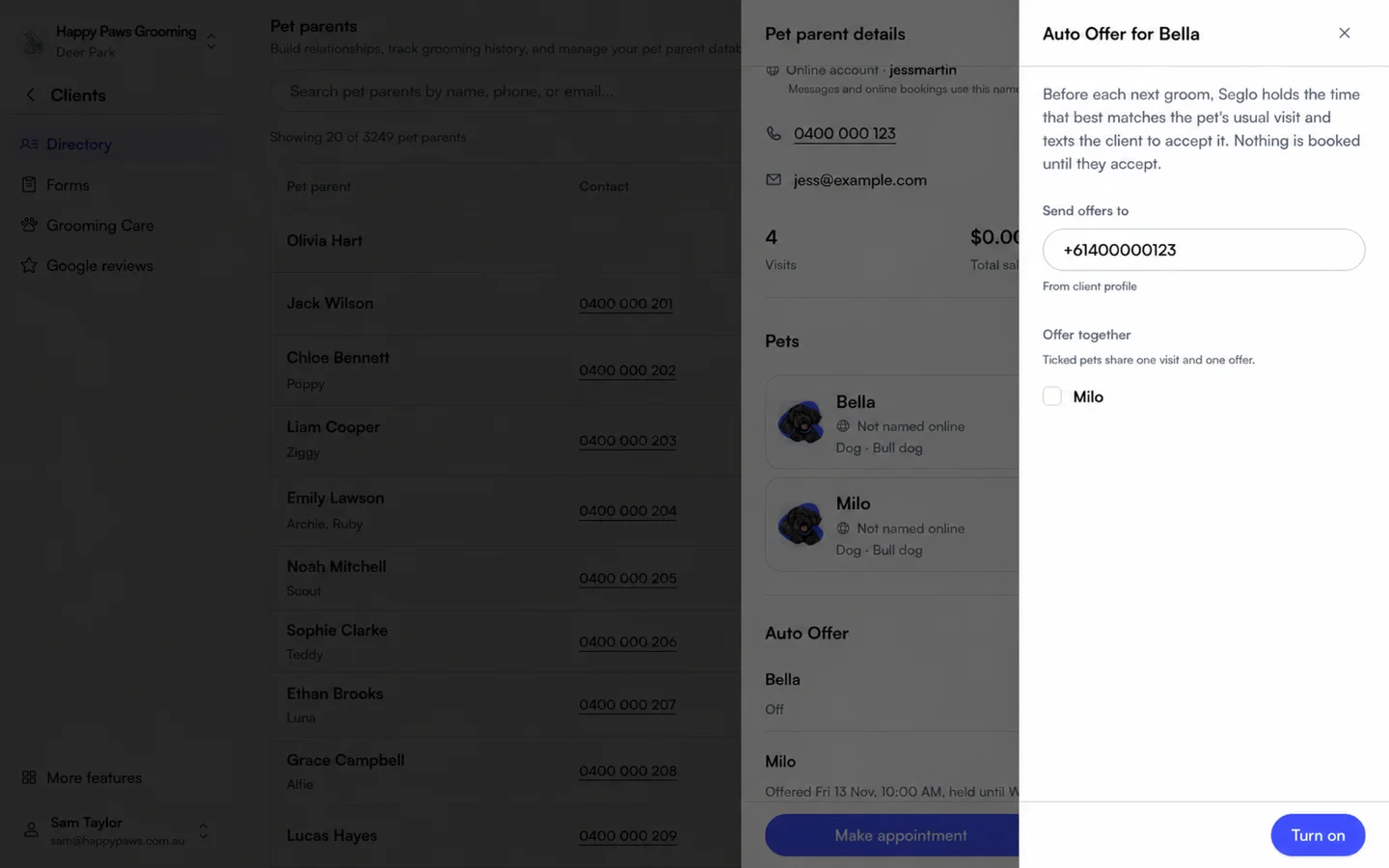
- Switch on Auto Offer for the pet.
- Check Send offers to. It's filled from the client's record. Type another mobile if the client wants offers somewhere else; it's only used for Auto Offer.
- If the client has other pets, tick them under Offer together to give them one visit and one offer. Pets offered together need the same care cycle.
- Choose Turn on.
You can also turn it on or off:
- From the client's record: the Auto Offer section lists each pet with its own switch.
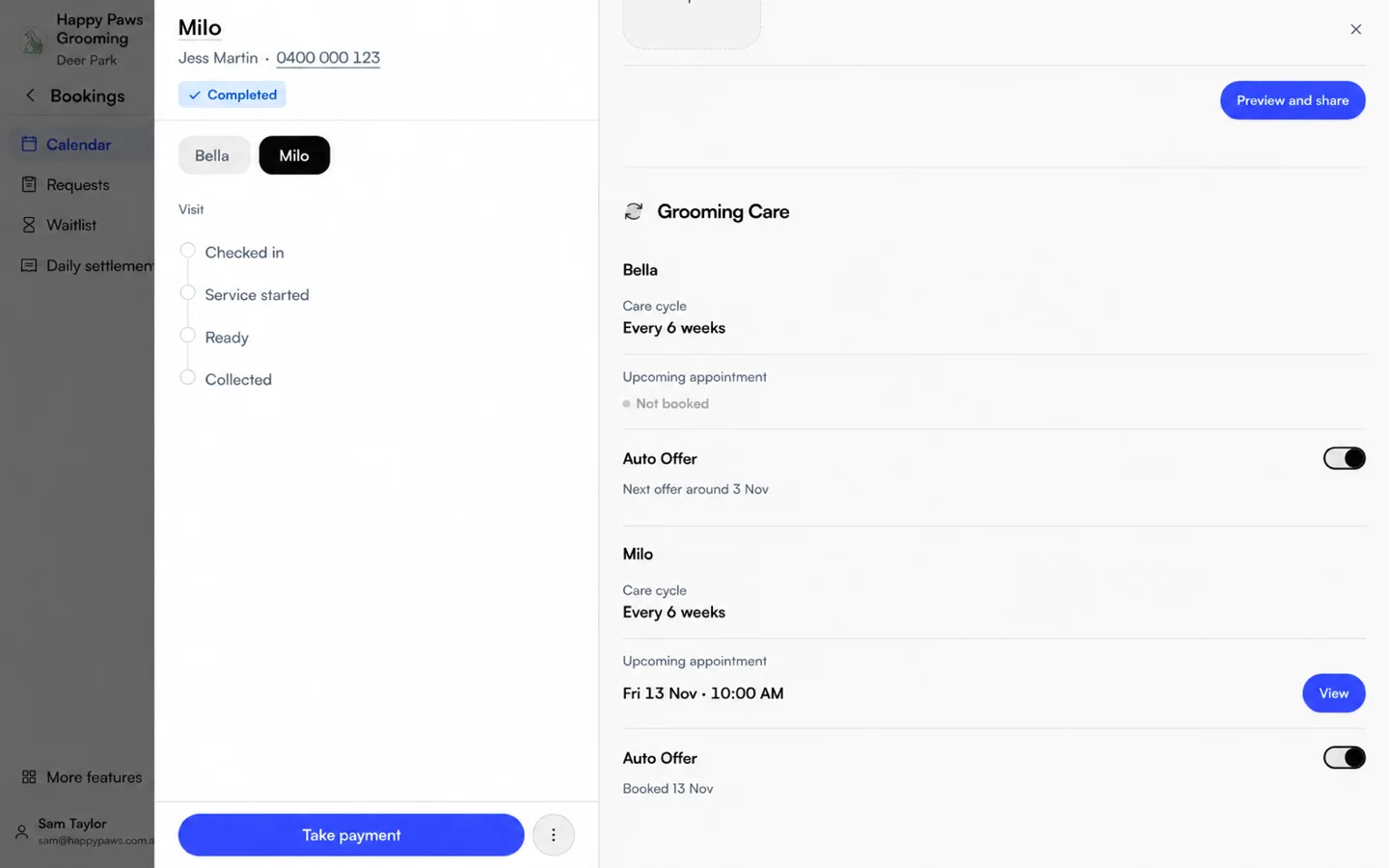
- From a booking: open the booking's Next groom section. Each pet has its own Auto Offer row.
If the switch can't be turned on, the line under it says why: no care cycle yet, no completed groom yet, or texts are off.
Book next or Auto Offer? If the client is happy to book now, use Book next at checkout. Auto Offer is for clients who'd rather not commit at the counter. A pet that already has its next groom booked gets no offer.
What happens after you turn it on
- About 10 days before the suggested next groom, Seglo looks for a time from 3 days before to 10 days after the suggested date, never earlier than tomorrow. It picks the one closest to the pet's usual visit: the same weekday, time and groomer as recent grooms, and the same services as last time.
- It holds the whole visit: the groomer, any assistant time and the room or table it needs, for every pet in the offer. Online customers and other offers can't take a held time.
- The client gets one text between 10 am and 5 pm your time. It names the held time, how long it's held and a link.
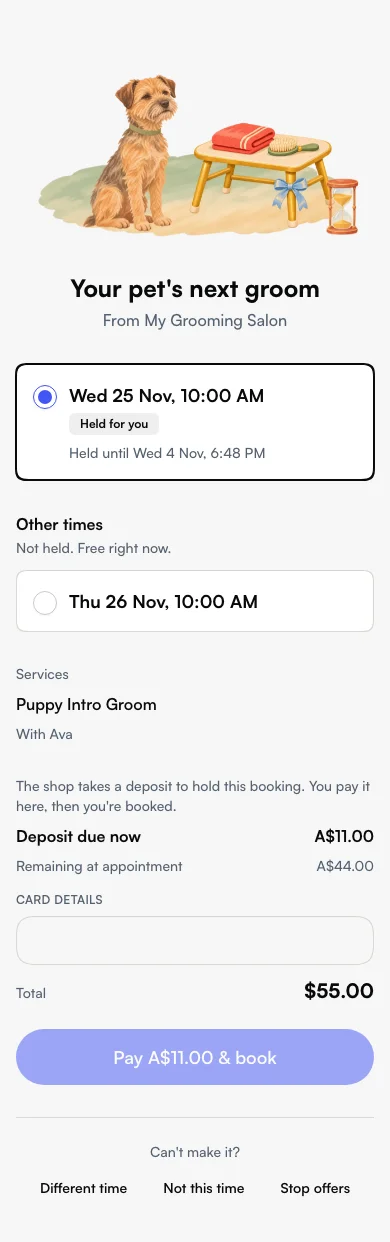
- The client opens the link and sees the held time, labelled Held for you, with a few Other times that are free right now. They tap Accept, or pick another time and Book this time.
- The appointment is confirmed and the client gets your usual booking confirmation. Your appointment reminders follow as normal.
Opening the link never books anything. Only the client's tap does. The client doesn't need to sign up first: the link signs them in with the mobile it was sent to.
If the roster for those days isn't published yet, Seglo waits for it, up to 3 days before the suggested date.
Deposits, cards and agreements
Auto Offer follows the same rules as booking online at your shop. If you take a deposit, the client sees your booking terms and pays it on the offer page; the appointment is booked once it's paid. If a service needs a signed agreement, they sign it on the same page first. If you take neither, one tap books it. See Booking policies.
What the client's text says
Every offer is one text with one sentence, the same for Auto Offer and the Waitlist. Which number sends it depends on the pet's location:
- The location has its own Seglo number: the text comes from your number.
Hi, we're holding Thu 12 Nov at 12:00 pm for Biscuit until 5:00 pm tomorrow. Book or pick another time: (link)
- The location has no number of its own: the text comes from Seglo's shared number, which can't take replies, so it starts with your business name.
Happy Paws Grooming: Hi, we're holding Thu 12 Nov at 12:00 pm for Biscuit until 5:00 pm tomorrow. Book or pick another time: (link)
The pets' names are left out when no pet is named on the offer.
Write your own offer text (AI offer text)
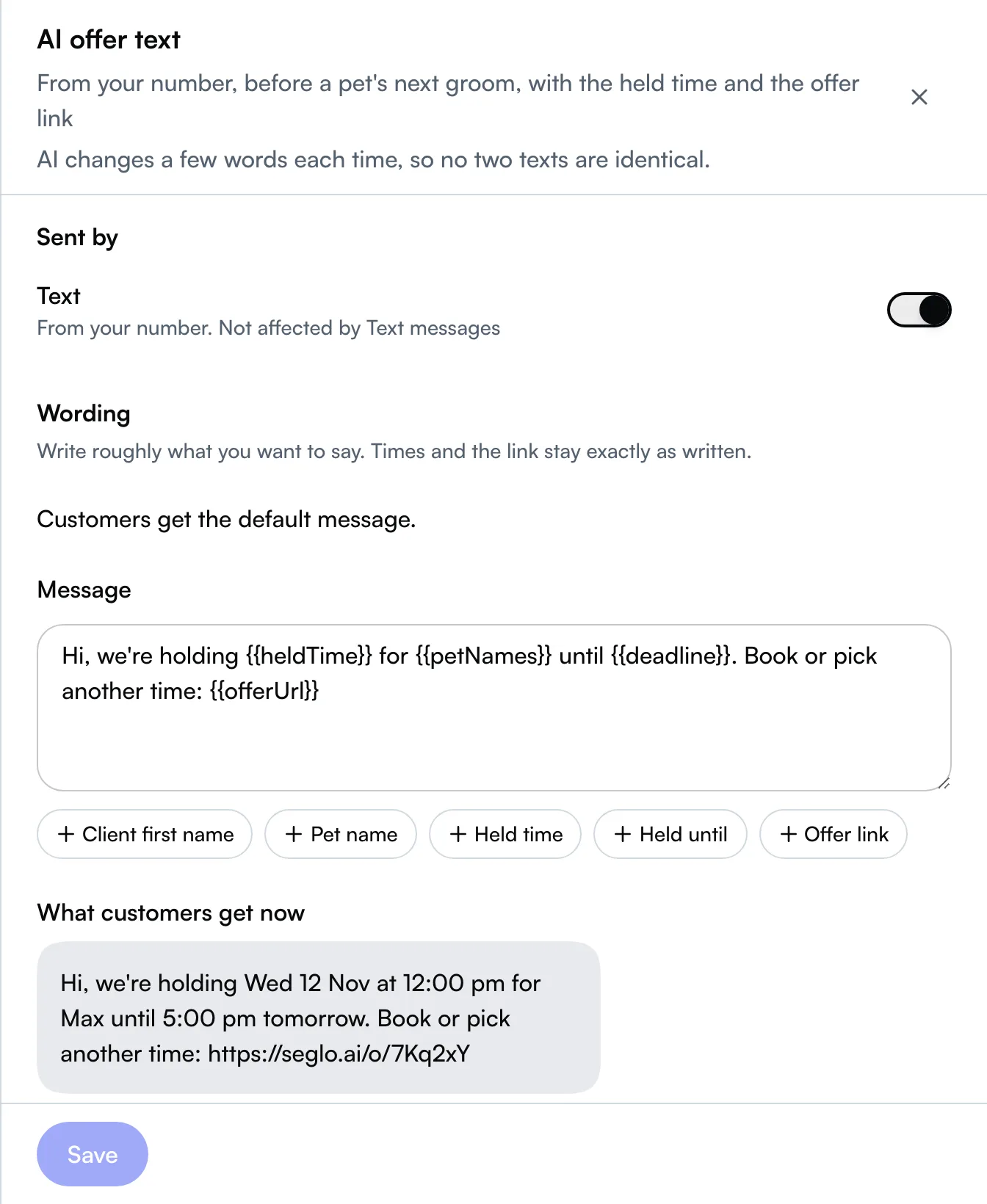
So your own number doesn't send the same automated text over and over, offer texts from your number are AI offer text: you write roughly what you want to say, and AI changes a few words on every send. The held time, the deadline and the link always stay exactly as written. If the rewording fails, the text goes as you wrote it. It works the same way as AI text back.
- Go to Settings → Notifications → Customers.
- Under Before the visit, open AI offer text (from your number) or Auto Offer link (from Seglo's number).
- Edit the wording. You can add Client first name, Pet name, Held time, Held until and Offer link, and Business name in the link version. Both texts must keep the Offer link.
Auto Offer link, from Seglo's number, is sent as written and never reworded. The defaults don't use the client's name, because what's in a name field isn't always what you'd call someone.
When a client replies to the text
A reply to an offer text arrives in Messages like any other text from that client. A reply never books, whatever it says: only the link in the text does. If they want the time, point them to the link.
When the client doesn't answer, or says no
- No answer: the hold ends after the Hold time (24 hours unless you change it) and the time is released. Seglo then sends one second offer with a new time. If that isn't answered either, the pet goes to Needs you and nothing more is sent. A client never gets more than two offers for one groom.
- Different time: the client releases the held time. They can pick one of the other times, or ask for another, which sends the second offer.
- Not this time: no more offers for this groom. The next cycle starts after the pet's next completed groom.
- Stop offers: turns Auto Offer off for that pet. The row on your side says Stopped by the client with the date. Only you can turn it back on.
The client gets no extra text for any of these: the page confirms their choice.
What you see on each pet
The line under the Auto Offer switch tells you where things are:
| Status | Means |
|---|---|
| Next offer around 3 Nov | On, and waiting until it's time to offer |
| Offered Thu 12 Nov, 12:00 pm, held until 5:00 pm | A time is held and the client hasn't answered |
| Second offer sent | The first offer wasn't taken; this is the last one |
| Accepted · deposit not paid | The client accepted but hasn't finished paying the deposit |
| Booked 12 Nov | The client accepted |
| Needs you | No booking this cycle. Book it yourself or contact the client |
| Stopped by the client on 4 Nov | The client stopped offers |
| Can't send: texts off | Nothing can be sent until texts are on or the location has its own number |
When an offer is out, tap its status line to open the offer and see exactly what was sent.
Needs you also appears on Grooming Care, with Book next groom beside the pet. A pet lands there when two offers went unanswered, when no time could be held, or when an accepted groom was later cancelled. Seglo never rebooks a cancelled groom by itself.
See every offer and what the client got (web app and Seglo appointment app)
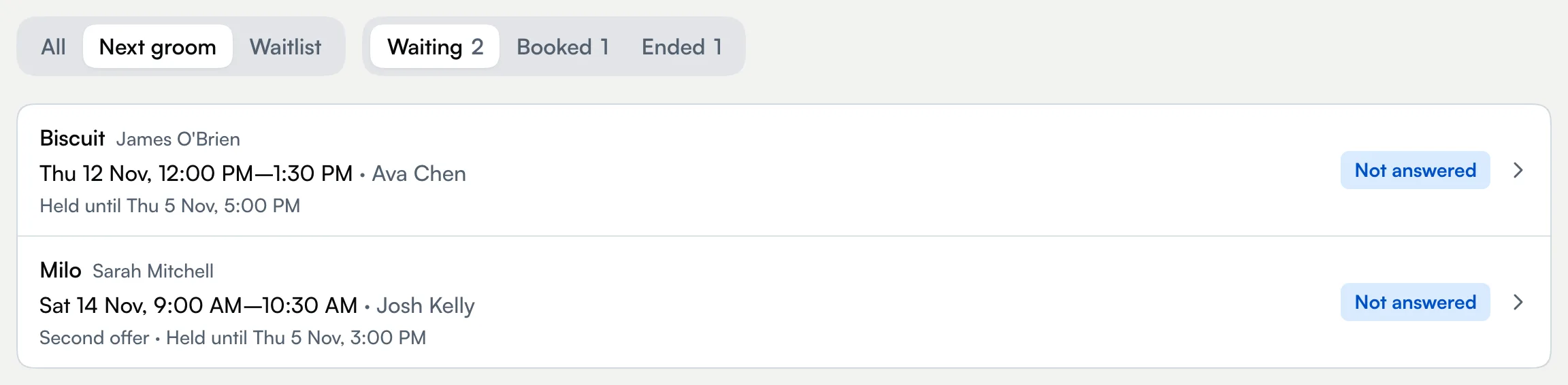
Offers lists every time you've sent a client to accept, from Auto Offer (Next groom) and from the Waitlist. Use it when a client says they never got a text, or to check what happened to an offer.
- Open Grooming Care and choose Offers at the top. It opens on Next groom offers. From the Waitlist, Offers opens on Waitlist offers.
- Switch between All, Next groom and Waitlist if you can see both. The source filter only shows when you have both.
- Choose Waiting, Booked or Ended. Each row shows the pets and client, the time and groomer, and where it stands, for example Not answered with Held until 5:00 pm under it, Booked, Booked · payment due, Expired or Withdrawn.
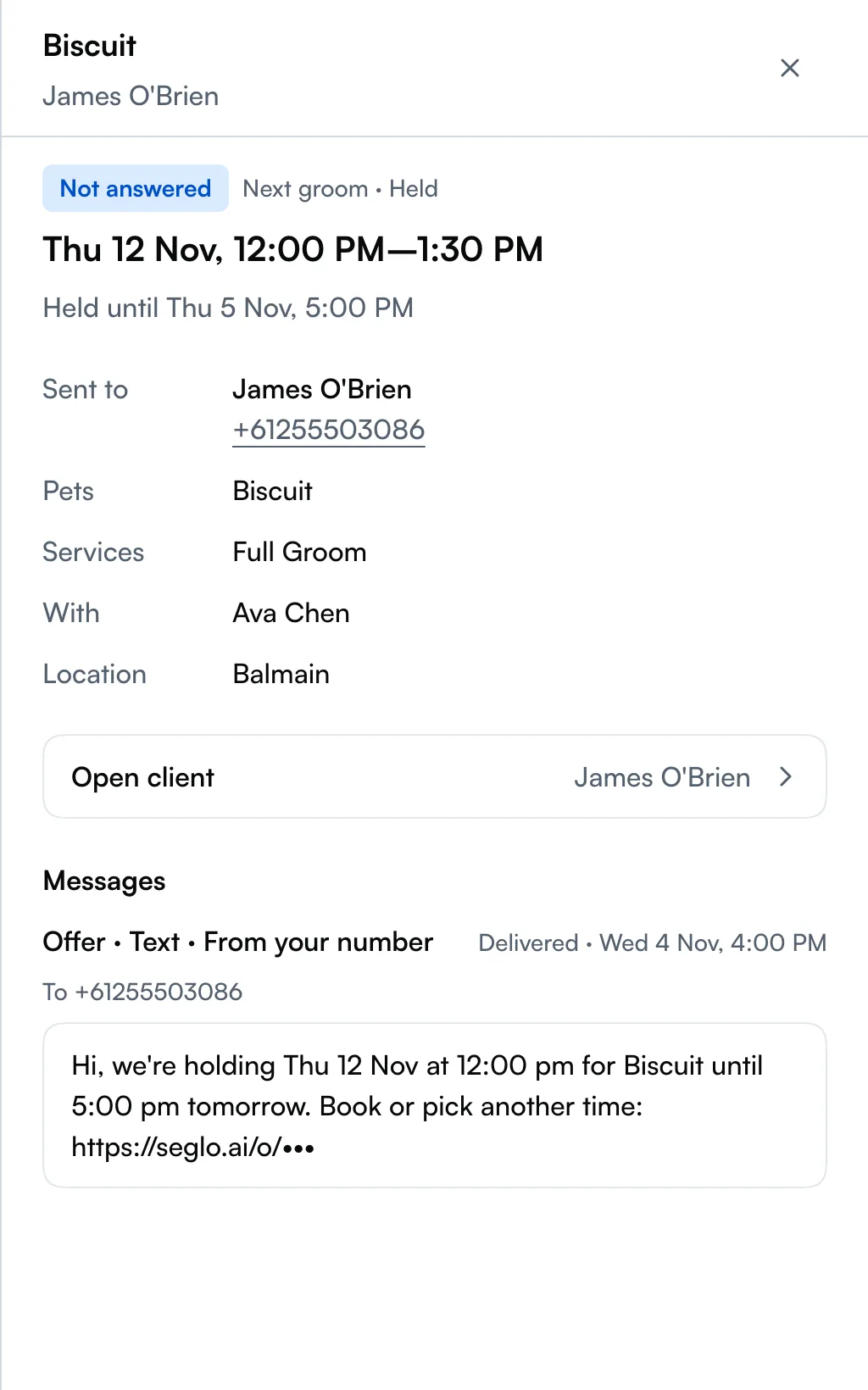
- Open a row to see the offer: who it was Sent to, the Pets, Services, the groomer, the Held time and when it's held until, and how the client answered. Open booking takes you to the appointment it became.
Under Messages, the offer shows each text exactly as it was sent, word for word, including any AI rewording: From your number or From Seglo, the number it went to, and whether it was Sent, Delivered, Failed or Not sent. The link in the text is hidden, because opening it signs in as the client. Offers sent before this was added show no text.
An offer only appears once a text went out. If Auto Offer couldn't send one, the pet's status line says why.
On the iPad counter app, Offers opens from the Waitlist screen.
Spot held times on the calendar
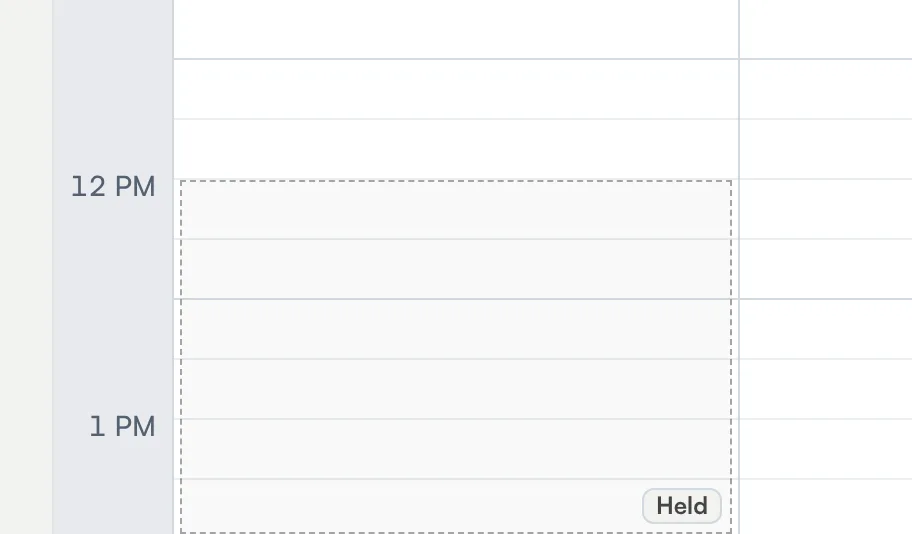
A held time shows on the groomer's column on the calendar as a dashed outline with a small Held tag. Select the tag to open the offer. Staff who can't see that kind of offer see only the Held tag.
Know where a booking came from
A booking a client made from an offer shows Next groom offer or Waitlist offer beside its status, on the booking's details. Select it to open the offer. While the client still owes the deposit, it adds Payment due.
Your notification for that booking says the same: it starts with Next groom offer accepted or Waitlist offer accepted, and Payment due if the deposit isn't paid yet.
When a pet's offers end without a booking, you get one Needs you notification, for example Biscuit (Amanda) · Next groom not booked yet. Opening it takes you to Needs you on Grooming Care. It's marked done on its own once the pet is booked, the cycle is closed or Auto Offer is off, whether you sort it out from the notification or from the list. Nothing is sent to you when an offer goes out. See Notifications inbox.
Book over a held time
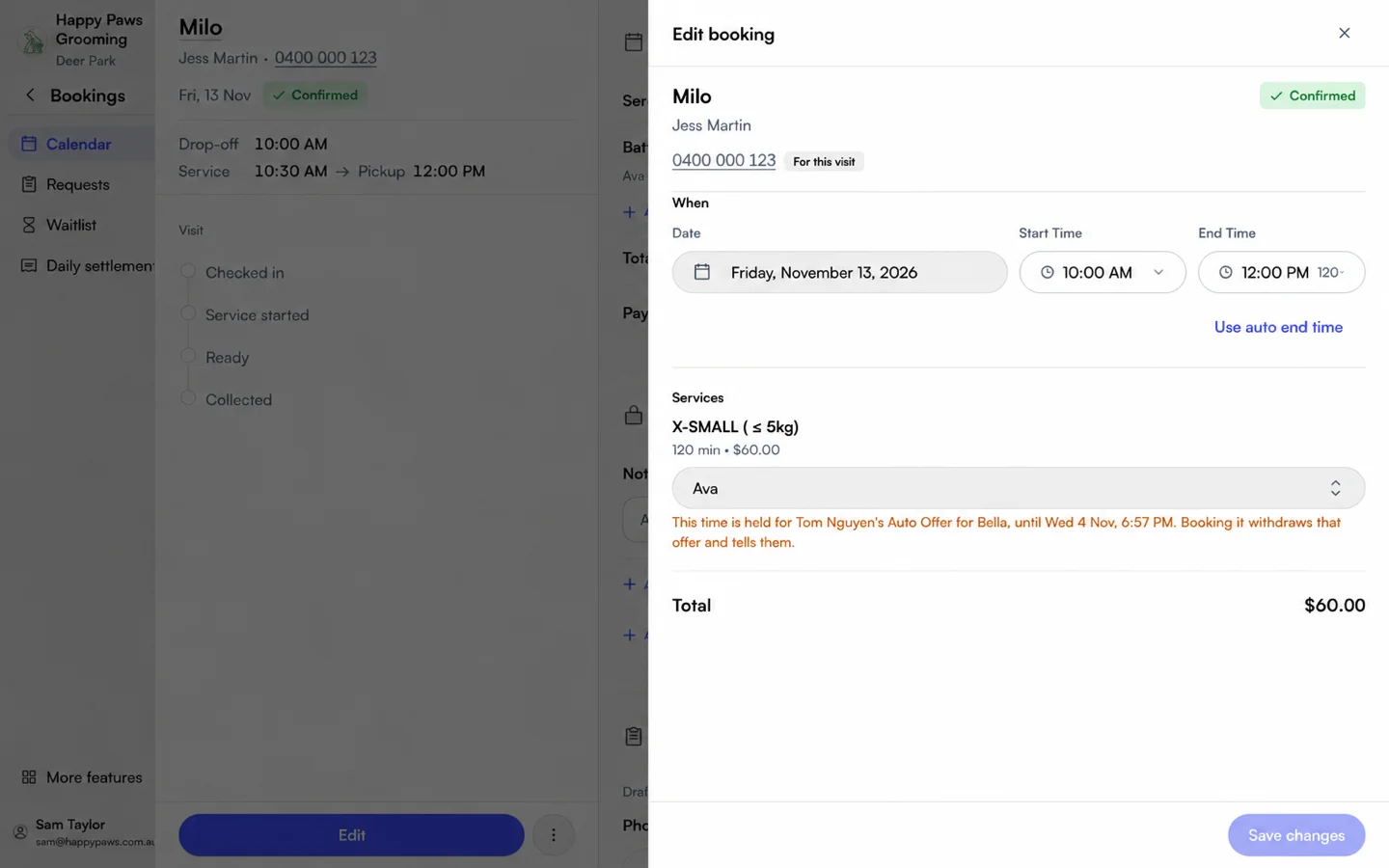
Staff can still book a held time, for a walk-in or a phone call. The Held marker on the calendar doesn't block it. The booking form warns that the time is held for that client's Auto Offer, and names the pets and the deadline. Booking it withdraws the offer and the client gets one text saying the time is no longer available. If a second offer is still allowed, that same text carries the new time.
The same happens when the held groomer goes on leave or the roster changes so the visit can't go ahead, or when you change the pet's care cycle and the held time no longer fits. Seglo never swaps the groomer or moves the date without telling the client.
Change when offers go out and how long they're held
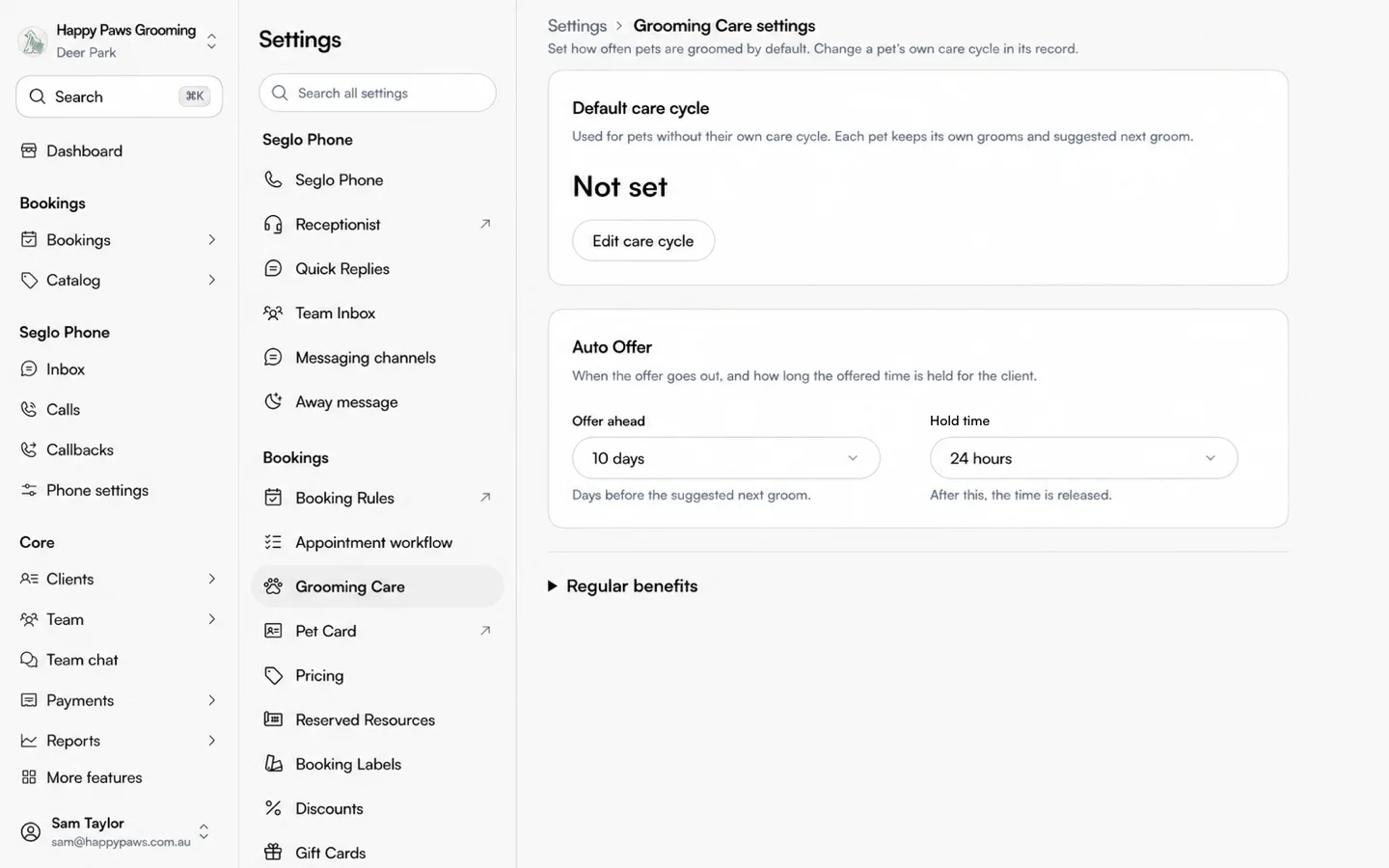
Open Settings → Grooming Care:
- Offer ahead: how many days before the suggested next groom the offer goes out. From 3 to 28 days; 10 by default.
- Hold time: how long the offered time is held. From 2 to 72 hours; 24 by default. A longer hold gives clients more time, but the slot can't be sold to anyone else meanwhile.
Turn it off
Switch off Auto Offer on the pet. If a time is held, it's released and the client gets a text saying so. Appointments already booked stay.
Archiving a pet takes it off Auto Offer. If you restore the pet later, turn Auto Offer on again. See Client profiles.
What clients see in their account
Clients see Auto Offer: On on their pet's Care Card. Tapping it opens their Auto Offer list: every pet it's on, and any time held for them. They can stop offers for a pet there. See My bookings.
Good to know
- One time is held, not three. Other times on the offer page are free when the client looks but aren't held.
- The two texts have their own switches in Notification settings. With AI offer text off, offers go from Seglo's number as Auto Offer link. With both off, no offers go out.
- Texts from Seglo's number use credits, like your other customer texts. Texts from your own number don't.
- A changed mobile number cancels the old offer. Links sent to the old number stop working.
- Clients can't text STOP to opt out. They use Stop offers on the page, or you turn it off.
Related
- Grooming Care — care cycles, suggested next grooms and Needs you.
- Waitlist — the other source of offers, in the same Offers list.
- Notification settings — the Auto Offer texts and appointment reminders.
- AI text back — the same AI rewording, for missed calls.
- Booking policies — deposits and terms.
- My bookings — what clients see in their account.
- Client profiles — archiving and restoring pets.
Related